
How to edit an existing video with HappyHorse (AI video editing)
Written by Clement
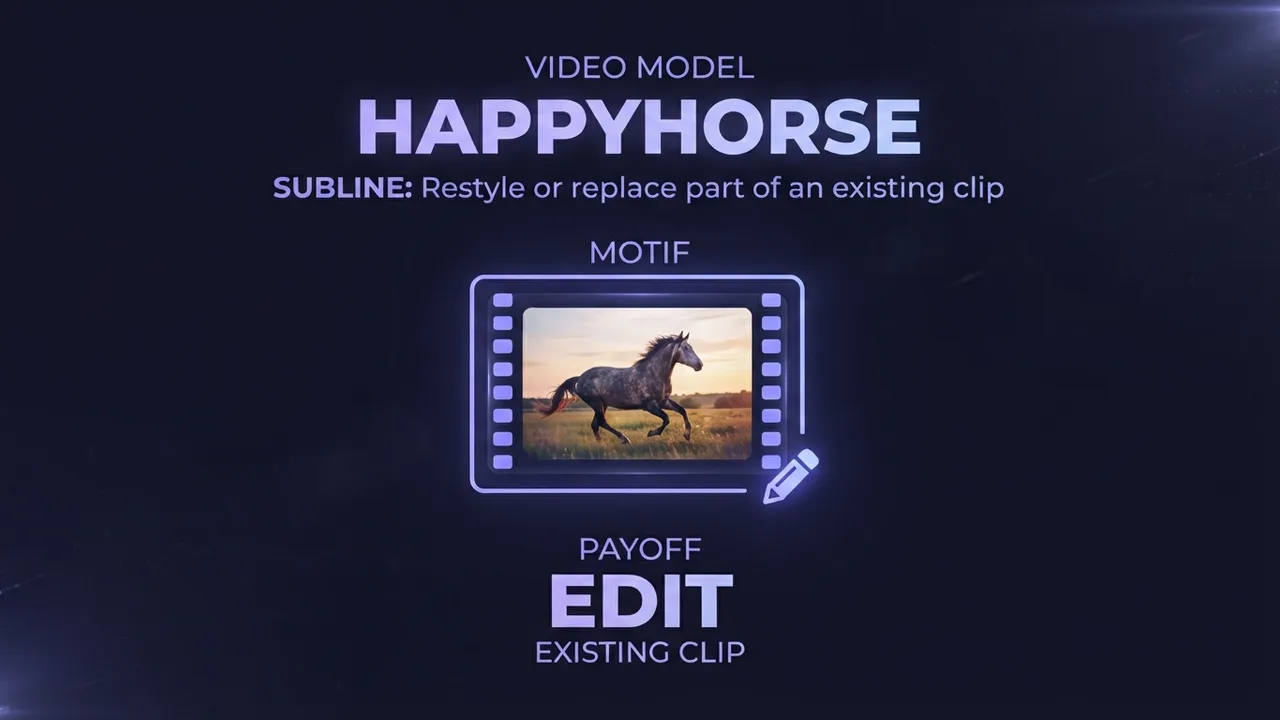
Every guide so far has been about generating a video from scratch. HappyHorse video editing does something different: you start with a video you already have, add one reference image, and describe the change you want (a style transfer, or swapping one specific thing for another), and it edits the existing footage instead of creating new motion from nothing.
This guide covers what kinds of edits it's good for, how to structure the reference image and instruction so the model changes only what you want, and the input limits and settings that decide whether an edit lands cleanly or falls apart.
What video editing is for (and what it isn't)
Image-to-video and reference-to-video generate new motion. HappyHorse video editing keeps the motion you already filmed or generated, and changes something about it (the look of a character, an outfit, an object) while leaving the rest of the clip intact. Think of it as the video equivalent of an inpainting or style-transfer tool: you supply the original performance, and it modifies what's visible without re-animating the whole thing.
It's the right tool when you have a clip that already moves the way you want and only one element is wrong (the character needs a different sweater, the subject needs a different art style) rather than for building a scene from stills. If you don't have a source video yet, start with image-to-video or reference-to-video and bring the result here afterward.
Step-by-step
The workflow is a two-step async job: submit the edit, then poll until it's done. The only real decision is how you frame the instruction and the reference image.
- 1
Check your source video meets the input spec
It must be MP4 or MOV (H.264 recommended), 3–60 seconds long, with the longer side under 4,096px and the shorter side at least 360px, an aspect ratio between 1:2.5 and 2.5:1, under 100MB, and more than 8fps. A clip outside any of these limits is rejected before editing even starts.
- 2
Pick one reference image for the change
Choose a sharp image that shows the thing you want introduced: a garment, a texture, a style, an object. It needs both width and height at least 300px, an aspect ratio between 1:2.5 and 2.5:1, and under 20MB. You can supply it as a public URL or a Base64 data URI.
- 3
Write one instruction naming both the target and the source
State what in the video should change and point to the reference image for the replacement, for example: "make the character in the video wear the striped sweater from the image." Name the specific element being edited, not the whole scene, so the model knows what to leave untouched.
- 4
Set resolution and audio handling
Choose 1080P (default) or 720P for the output, and decide what happens to sound: auto lets the model decide, origin keeps the input video's original audio untouched. Pick origin whenever the source audio matters and shouldn't change.
- 5
Submit the task and poll for the result
The API is asynchronous: you get a task_id back immediately, then poll the task endpoint (every ~15 seconds is reasonable) until the status moves from PENDING to RUNNING to SUCCEEDED or FAILED. Don't resubmit while waiting; the task_id is valid for 24 hours.
- 6
Review the edit against the original, not in isolation
Play the result side by side with the source clip. Check that the intended element changed convincingly and that everything else (motion, framing, other objects) stayed the same. An edit that changes too much or too little usually traces back to how the instruction was worded.
Writing an instruction that edits one thing
The instruction is doing a narrower job than a generation prompt: it's not describing a whole scene, it's naming a single change and pointing at its source. "Make the horse-headed humanoid character in the video wear the striped sweater from the image" names the target (the character), the change (wearing something new), and the source (the image) in one sentence.
Be specific about what's being replaced or restyled. "Change the outfit" is vaguer than "replace the character's jacket with the leather jacket from the image": the more precisely you name the element, the less room the model has to touch things you didn't mean to change.
You get up to about 5,000 non-Chinese characters (2,500 Chinese) in the prompt, but a tight, specific sentence beats a long one here more than almost anywhere else. Extra description of things you don't want changed just adds noise for an edit task.
Recommended settings (baseline)
Start here, then adjust one variable at a time.
- Source video
- MP4/MOV, H.264 recommended, 3–60s, ≤4096px long side, ≥360px short side, 1:2.5–2.5:1, ≤100MB, >8fps
- Reference image
- 1 image; ≥300px both sides, 1:2.5–2.5:1 aspect ratio, ≤20MB; JPEG/JPG/PNG/WEBP via URL or Base64
- Resolution
- 1080P (default) or 720P: 720P is cheaper and faster for a first pass
- Audio
- auto (default, model decides) or origin (preserve the source video's audio unchanged)
- Watermark
- On by default (bottom-right "Happy Horse" mark); can be turned off
- Output length
- Matches the input if ≤15s; longer inputs are automatically trimmed to their first 15 seconds
- Seed
- Fixed while tuning so you compare like-for-like; randomize once the edit is right to explore variations
Get new guides by email
One email when we publish new guides and model breakdowns. No spam, unsubscribe anytime.
Style transfer vs. local replacement
The two edit types this model is built for behave differently. Style transfer asks for a look (a painterly style, a different color grading, an art style pulled from the reference image) applied across the whole clip. Local replacement asks for one specific thing to change (a garment, a prop, an accessory) while everything else stays exactly as filmed.
Word the instruction to match which one you want. For style transfer, describe the look itself: "restyle the video in the painting style of the image." For local replacement, name the object being swapped and where it comes from: "replace the character's shoes with the boots from the image." Mixing both in one instruction (a new style and a new object) is harder for the model to satisfy cleanly than doing one edit at a time.
Choosing a reference image that edits well
Show only the thing you want introduced, and without clutter. A reference image of a sweater on a plain background transfers more reliably than the same sweater in a busy photo with other objects competing for attention.
Match the reference's lighting and quality to the source video where you can. A bright, high-contrast reference image dropped into a dim, moody video clip can make the edited element look pasted-in rather than native to the scene.
One reference image per task. If you need to combine several separate elements into a new scene rather than edit an existing clip, that's what reference-to-video is for: video editing here takes exactly one reference image per call.
Common problems and fixes
The edit doesn't take effect: the instruction was too vague about what should change, or too broad about the whole scene. Name the specific element and its replacement source directly.
Too much of the clip changed: the instruction described more than the one intended edit. Strip it back to naming just the target element and the reference.
The edited element looks inconsistent across frames: the reference image's lighting or quality didn't match the source video. Pick a cleaner, better-matched reference and re-run.
Task returns UNKNOWN: the task_id has expired (valid 24 hours from creation) or never existed. Submit a new task rather than continuing to poll an old one.
Output is shorter than expected: inputs longer than 15 seconds are automatically trimmed to their first 15 seconds. Trim and re-submit the exact segment you want edited if that's not what you intended.
Where video editing fits versus generating from scratch
If you don't yet have a video that moves the way you want, generate one first: image-to-video for a single source image, reference-to-video for a scene assembled from several. Bring HappyHorse video editing in afterward, once you have a clip whose motion is right and only its look or one element needs to change.
The techniques chain naturally: generate a clip with image-to-video or reference-to-video, then use video editing to restyle it or swap out one detail, without having to regenerate the motion from scratch just to fix a single visual element.
In our own testing, a local-replacement edit (swapping one character's outfit for another shown in a reference image) held up well: the rest of the clip, motion, framing, other objects, stayed untouched, and only the named element changed.
Keep reading
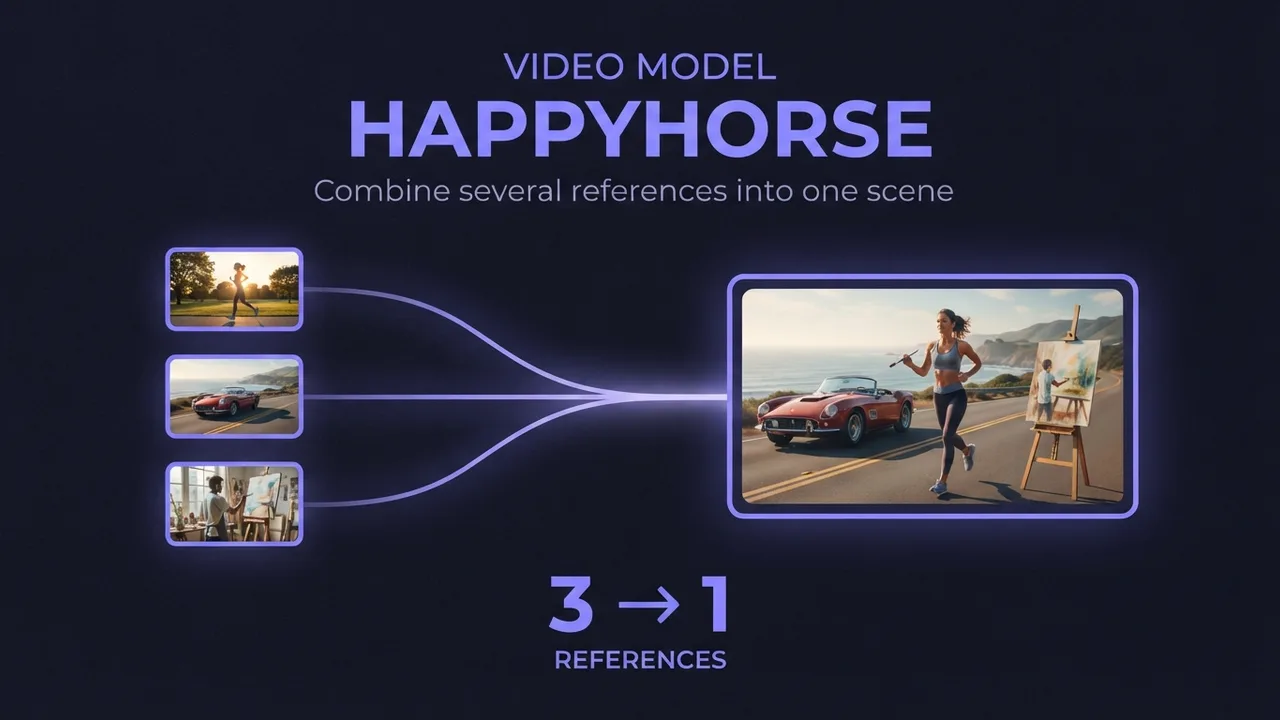
How to use HappyHorse reference-to-video (multi-image AI video)
A practical guide to HappyHorse reference-to-video: how to combine several reference images (a person, an outfit, an accessory) into one AI video scene, how to reference each image in your prompt, and the settings and mistakes that decide whether the shots blend or clash.
How to use HappyHorse image-to-video (first-frame AI video)
A practical guide to HappyHorse image-to-video: how to turn a single first-frame image and a prompt into smooth AI video, the resolution and duration settings that matter, and the mistakes that waste a render.
How to use HappyHorse text-to-video (AI video from a prompt)
A practical guide to HappyHorse text-to-video: how to write a prompt that produces physically realistic, motion-smooth video with no source image, the resolution and duration settings that matter, and the mistakes that waste a render.
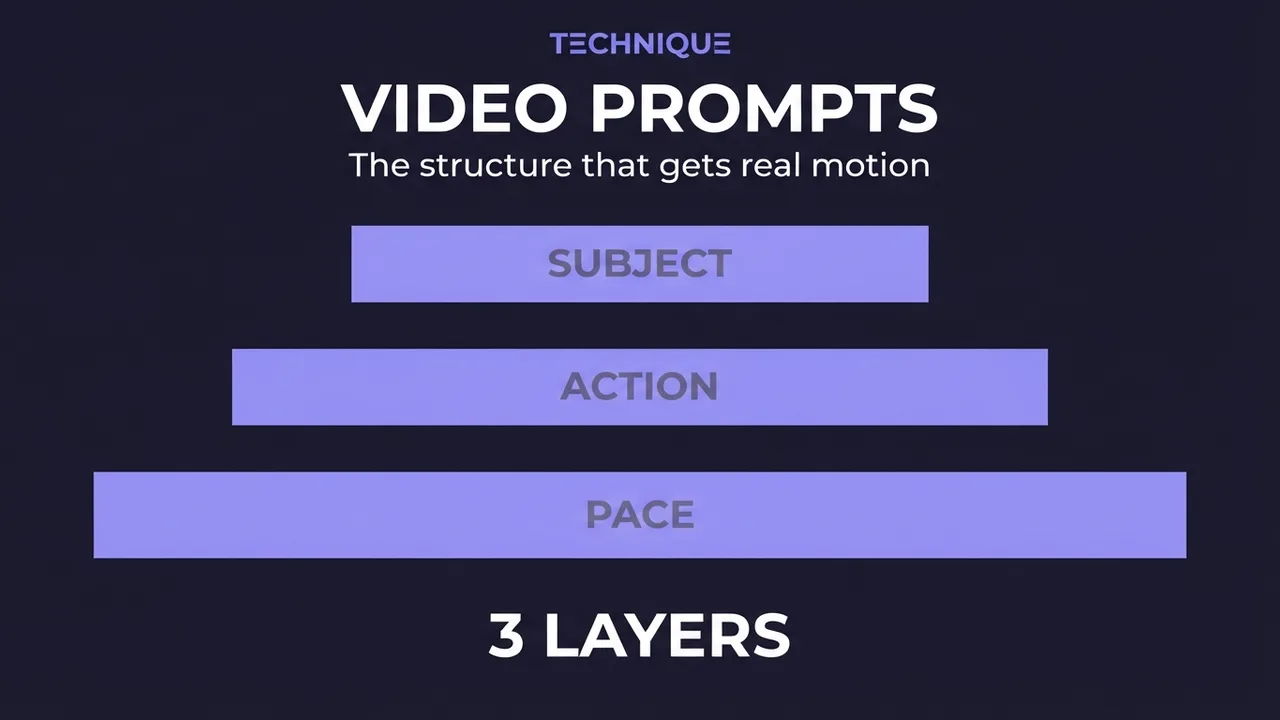
How to write prompts for AI video generation
The prompt structure that works for AI video: why motion prompts are different from image prompts, the present-progressive rule, and the specific phrasing that gets you believable movement instead of a warped photo.
Get new guides by email
One email when we publish new guides and model breakdowns. No spam, unsubscribe anytime.