
How to use Dola-Seedream-5.0-lite for AI image generation
Written by Clement
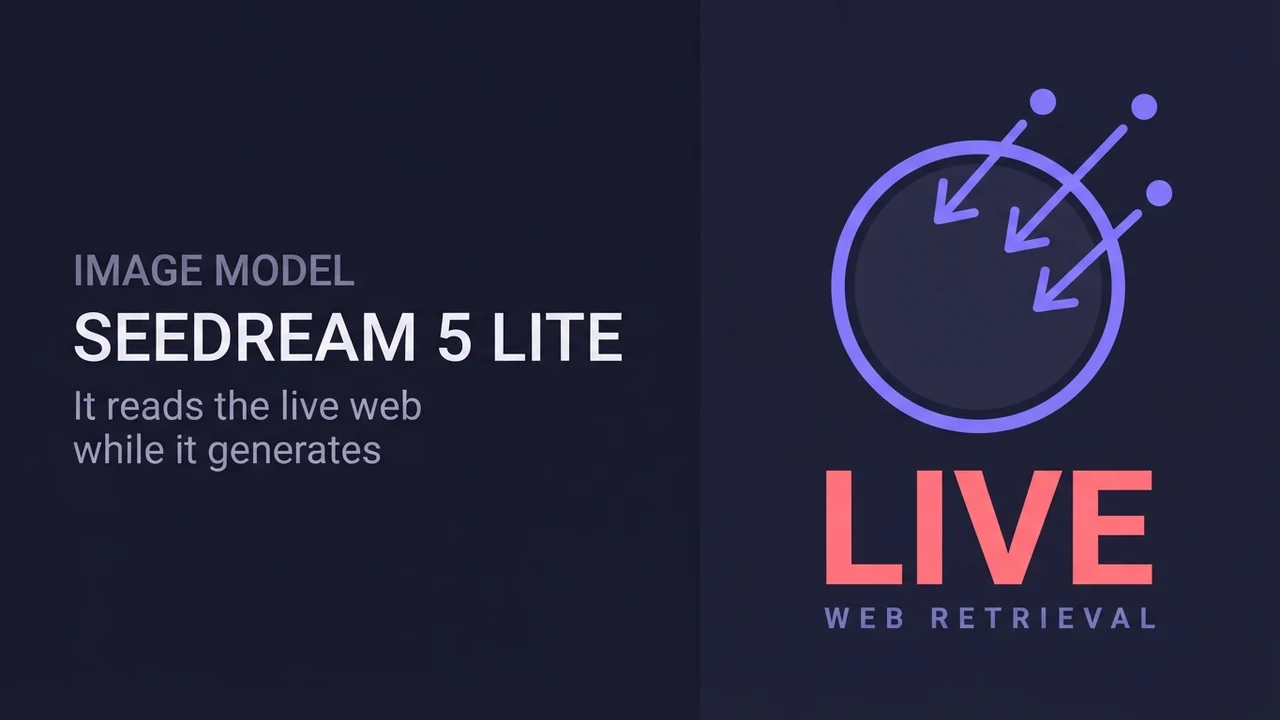
Dola-Seedream-5.0-lite is BytePlus's image generation model, and it stands apart from most text-to-image tools in one specific way: it can pull in real-time information from the web while generating, so a prompt referencing a current trend, meme, or event doesn't rely only on what the model already knew at training time. Beyond that, it accepts text, a single image, or multiple images as input, and can produce a whole set of related images from one request.
This guide covers how to prompt it for a fresh, trend-aware result, how to use one or more reference images for consistent characters or products, and how to read its pricing so you know what a generation costs before you run it.
The panel above is an illustration of the workflow, not a live tool.
Want to make one? Grab the free prompt file. It turns ChatGPT, Claude, or Gemini into a specialist for this.
Get the free prompt file →What makes this model different: web-connected retrieval
Most image models generate purely from what they learned during training, so anything that became popular after that cutoff is invisible to them. Dola-Seedream-5.0-lite instead retrieves current online information as part of generation, so a prompt asking for a specific trending meme, character, or news-driven visual can be grounded in what's circulating right now rather than the model's best guess.
This matters most for prompts that name something time-sensitive: a viral image format, a current meme, a recent public figure or event. For anything timeless (a product shot, a portrait, a generic scene), the retrieval capability adds little and a normal descriptive prompt works exactly as it would with any other model.
Step-by-step
The workflow branches slightly depending on if you're generating from text alone or from one or more reference images.
- 1
Decide your input type
Text-only if you're generating a new scene from scratch, or invoking a trending reference the model should look up. Single- or multi-image input if you want to keep a specific subject, product, or outfit consistent, or combine elements from separate photos into one image.
- 2
Write the prompt
Describe the subject, setting, and style in concrete terms. If you're relying on web-connected retrieval, name the specific trend or reference plainly ("the trending Crying Horse plush", "the popular elegant penguin meme") rather than describing it vaguely. A precise name is what the model looks up.
- 3
Add reference images if you have them
For a multi-image request, number your references in the order you provide them and point at each one in the prompt ("the model in Image 1 holds the product from Image 2"). This is what tells the model which pixels to pull from which source instead of inventing its own version of each element.
- 4
State what must stay consistent
If a character, face, product, or style must match a reference exactly, say so directly. The model's consistency preservation is strongest when the prompt is explicit about what should be retained versus what's free to change.
- 5
Choose text-to-image or image-to-image
Text-to-image and image-to-image are priced and capped separately (see the settings table). Pick whichever matches if you're starting from a written description or transforming/combining existing images.
- 6
Generate and review for both fidelity and freshness
Check the result against two things: does it follow your composition and consistency instructions, and (if you invoked a trending reference) does it reflect the current version of that trend rather than a generic or outdated take on it.
Writing a prompt that uses retrieval and instruction-following well
Name the real-world reference specifically, then direct what to do with it. "Search for the trending Crying Horse from recent popular content, design it as a giant artistic plush installation crouching on Bund street" gives the model both something exact to retrieve and a clear creative instruction for what to do with what it finds: retrieval supplies the subject, your wording supplies the direction.
Combining reference images for a consistent result
Introduce each reference image the first time you use it, tying its number to a plain-language description: "the model in Image 1", "the lipstick from Image 2". This gives the model both the visual source and a description to anchor it to, the same pattern that works for any multi-image model.
Be explicit about what must transfer exactly versus what can adapt. A product shot that needs the exact lipstick color and shape from a reference, but a new pose and background, should say so in those terms. The model's consistency strength is highest when you tell it precisely which details are fixed.
Fewer, clearer references outperform many marginal ones. Two or three sharp, well-chosen images that each show one element (the person, the product, the outfit) work better than a longer stack where several barely contribute and add room for confusion.
We ran a multi-image test ourselves: two or three sharp references, each labeled for its role, produced a more consistent result than a longer stack of marginal ones, exactly as the model's own guidance suggests.
Pricing and limits
Both task types are billed per generated image. Check current pricing before a large batch. The model ID is seedream-5-0-260128.
- Text to image
- 0.035 USD per image
- Image to image
- 0.035 USD per image
- Input
- Text, image (single or multiple)
- Output
- Image (can generate an image set from one request)
- IPM (images per minute)
- 500
Get new prompt files and guides first
One email when a new tested prompt file or model guide goes live. Prompts that survived production, not theory. No spam, unsubscribe anytime.
Common problems and fixes
Result doesn't reflect the actual current trend: the prompt named the reference too vaguely, or used a description instead of the trend's actual name. Be as specific as you would searching for it yourself.
A reference image's subject doesn't appear or looks wrong: the prompt didn't introduce that image and what to take from it, or the reference image itself is low-quality, poorly lit, or ambiguous. Replace the weakest reference before adjusting anything else.
Output ignores part of the instruction: complex prompts with many simultaneous requirements can lose one. Split into what's essential (subject, consistency requirements) versus what's decorative, and lead with the essential parts.
Style feels generic despite a detailed prompt: check that style and mood are described as their own clause, not folded into the subject description. Separating subject, style, and setting into distinct phrases tends to render more faithfully.
Where this model fits versus other image tools
Reach for Dola-Seedream-5.0-lite specifically when a prompt depends on something current (a trend, meme, or recent reference) or when you need multiple images combined with strong consistency, such as product photography with a specific item or a character kept consistent across a set. For a purely imagined scene with no time-sensitive element and no reference images, a lighter, single-purpose text-to-image model may generate just as well for less.
If the output is a still frame you plan to animate afterward, a Dola-Seedream-5.0-lite generation makes a clean source image for an image-to-video model: generate and lock the frame here, then hand it off for motion.
Keep reading
How to use Z-Image for AI image generation
A practical guide to Z-Image (z-image-turbo): a fast, lightweight text-to-image model with clean English and Chinese text rendering. Covers the resolutions that work best, how to write a prompt it renders faithfully, and the settings that decide speed versus quality.
How to use Seedream 4.5 for AI image generation
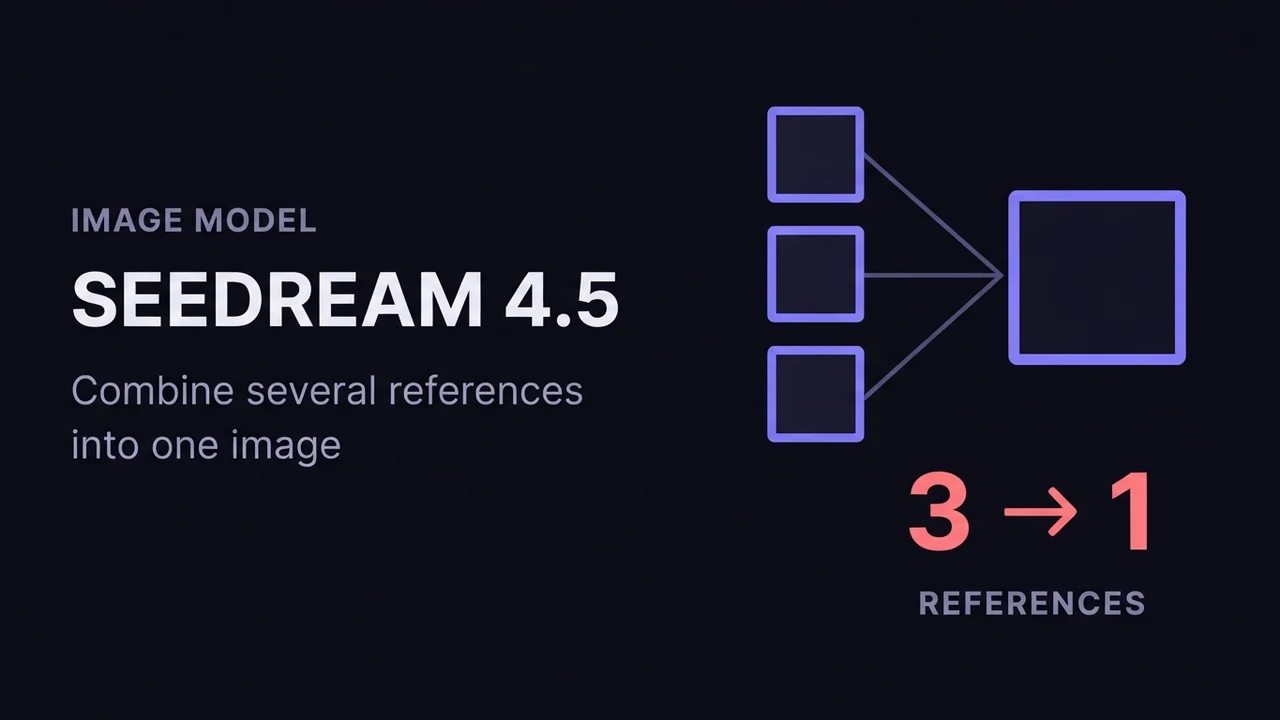
A practical guide to ByteDance Seedream 4.5: how its text-to-image and image-to-image (multi-image fusion) modes work, how to reference input images in a prompt, the resolution and batch settings that matter, and how to get consistent, high-detail results.
How to use Wan 2.7 Image (text-to-image, editing, and image sets)
A practical guide to Wan 2.7 Image: text-to-image up to 4K, prompt-based editing, interactive region edits, multi-image reference, and generating consistent image sets. Settings, prompting, and the mistakes that waste renders.
Get new prompt files and guides first
One email when a new tested prompt file or model guide goes live. Prompts that survived production, not theory. No spam, unsubscribe anytime.