
How to use Z-Image for AI image generation
Written by Clement
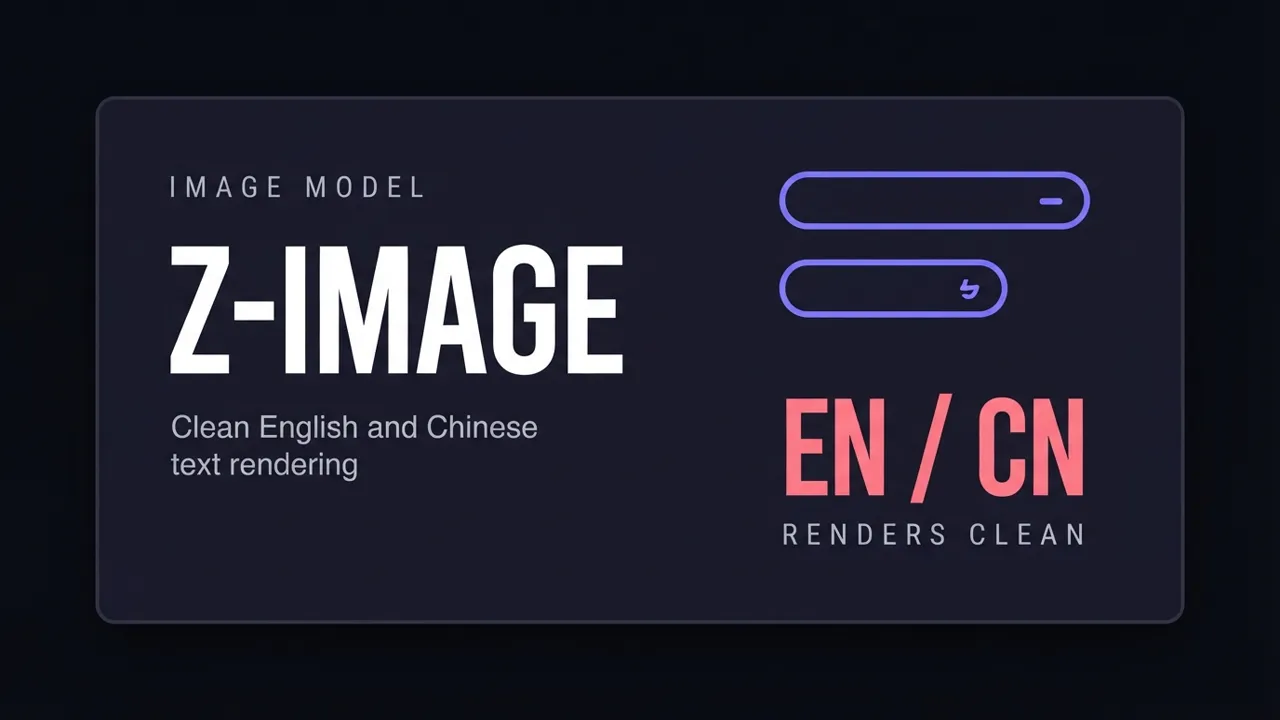
Z-Image is a lightweight text-to-image model built for speed: you send a prompt, and it returns one image in a single fast pass, with flexible resolutions and reliable text rendering in both English and Chinese. It's the tool to reach for when you want a quick, controllable still image rather than a scene composed from multiple references or a heavier, slower model.
This guide covers how to pick a resolution, how to write a prompt Z-Image renders faithfully, when to turn on its optional prompt rewriting, and the mistakes that most often waste a generation.
The panel above is an illustration of the workflow, not a live tool.
Want to make one? Grab the free prompt file. It turns ChatGPT, Claude, or Gemini into a specialist for this.
Get the free prompt file →What Z-Image is for
Z-Image (model name z-image-turbo) is a single-image, text-to-image model: you give it one written prompt and it generates one PNG. There is no reference image, no multi-image composition, and no video. It's the fast, focused tool for turning a description into a still picture.
Its two standout traits are speed and text rendering. It's built to generate quickly rather than to maximize every last bit of fidelity, and it reproduces both English and Chinese text inside an image more reliably than most general-purpose models. That's useful for posters, signage, packaging mockups, or any shot where legible in-image text matters.
Step-by-step
Z-Image responds synchronously by default: you send a request and get the image straight back, no polling required.
- 1
Write your prompt
Describe the subject, style, and composition in one prompt. Z-Image accepts English or Chinese, up to 800 characters; anything past that is truncated, so keep it focused rather than exhaustive.
- 2
Pick a resolution
Choose a width×height between 512×512 and 2048×2048. If you know the aspect ratio you need, use one of the recommended pairings (see the settings table) rather than an arbitrary size: they're tuned to hit a clean total pixel count at that ratio.
- 3
Decide whether you want prompt rewriting
Leave prompt_extend off for the fastest response with your prompt used as-is. Turn it on if you want the model to expand and refine your wording first. It costs more and takes longer, but can help a thin prompt produce a fuller image.
- 4
Set a seed if you want repeatable results
Leave it blank to get a random result each time, or fix a seed to compare changes to your prompt like-for-like. Note that even a fixed seed won't reproduce an identical image (generation is probabilistic), but it keeps results in the same neighborhood.
- 5
Send the request and read the response directly
Z-Image's synchronous endpoint returns the image URL in the same response: there's no task ID to poll and no waiting period, which is the main workflow difference from video models.
- 6
Download the image promptly
The returned image URL is only valid for 24 hours before the file is purged. Save it to your own storage as soon as the request completes.
Writing a Z-Image prompt that renders faithfully
Lead with the subject and composition in concrete terms: who or what is in frame, their pose, and where the camera sits ("full-body portrait, centered composition, direct eye contact with the camera"). Concrete framing language gives the model a clear target instead of a vague mood.
Layer in style and setting after the subject: describe the background, lighting, and color palette as their own clauses. A prompt that moves from subject → outfit/detail → background → lighting → framing tends to render more coherently than one long unordered sentence.
If you need text to appear in the image (a sign, a label, a piece of dialogue in a speech bubble), write it out exactly, in quotes, and say where it appears. Z-Image's text rendering is one of its strengths; give it a precise string rather than a paraphrase of what the text should say.
Recommended resolutions (baseline)
Pick the total pixel budget you want (1024², 1280², or 1536²), then choose the row that matches your aspect ratio. Staying on these pairings avoids the stretching an off-spec size can cause.
- 1:1 (square)
- 1024×1024 · 1280×1280 · 1536×1536
- 3:4 / 4:3 (portrait / landscape)
- 864×1152 / 1152×864 · 1104×1472 / 1472×1104 · 1296×1728 / 1728×1296
- 2:3 / 3:2
- 832×1248 / 1248×832 · 1024×1536 / 1536×1024 · 1248×1872 / 1872×1248
- 9:16 / 16:9 (phone / widescreen)
- 720×1280 / 1280×720 · 864×1536 / 1536×864 · 1152×2048 / 2048×1152
- 9:21 / 21:9 (ultra-tall / ultra-wide)
- 576×1344 / 1344×576 · 720×1680 / 1680×720 · 864×2016 / 2016×864
Get new prompt files and guides first
One email when a new tested prompt file or model guide goes live. Prompts that survived production, not theory. No spam, unsubscribe anytime.
When to turn on prompt_extend
prompt_extend runs your prompt through an LLM rewriting pass before generation, returning the optimized prompt and its reasoning alongside the image. It helps most when your original prompt is short or vague: the rewrite adds detail you didn't specify, which can turn a thin idea into a fuller image.
Leave it off when you've already written a detailed, deliberate prompt, like the layered subject → style → background → lighting structure above. At that point a rewrite is more likely to drift from your exact intent than improve it, and it always costs more and takes longer to return.
Common problems and fixes
Image looks generic or doesn't match what you imagined: the prompt described a mood rather than a concrete scene. Name the specific subject, setting, colors, and framing you want present, in that order.
Text in the image is garbled or missing: the prompt paraphrased the text instead of quoting it exactly, or asked for more than one text element without saying where each belongs. Quote the exact string and state its placement.
Output looks stretched or oddly cropped: the resolution isn't one of the recommended pairings for that aspect ratio. Switch to a listed size.
Result is close but not quite right: change only the seed and re-run before touching the prompt. Generation is probabilistic, and a different seed alone often fixes a near-miss.
Request returns a moderation error: both the prompt and the output image are checked for policy compliance. Rework the prompt to remove the flagged content rather than resubmitting unchanged.
Where Z-Image fits versus other tools
Reach for Z-Image when you want a single, fast still image from a text description. It's lighter and quicker than models built for maximum photorealism, which makes it a strong fit for drafts, concept passes, and any image with an in-picture text element like a sign or label.
If your shot needs to combine several separate reference photos into one scene, that's a job for a reference-based generator instead. If you're aiming to animate a finished image afterward, a Z-Image output makes a clean first-frame source for an image-to-video model: generate the still here, then hand it off for motion.
We reach for it as our default drafting tool. Side by side against Wan 2.7 Image on the same prompt, Z-Image came back noticeably faster for a comparable result, and we only reach for a heavier model once the composition is locked.
Keep reading
How to use Wan 2.7 Image (text-to-image, editing, and image sets)
A practical guide to Wan 2.7 Image: text-to-image up to 4K, prompt-based editing, interactive region edits, multi-image reference, and generating consistent image sets. Settings, prompting, and the mistakes that waste renders.
How to use Dola-Seedream-5.0-lite for AI image generation
A practical guide to Dola-Seedream-5.0-lite (model ID seedream-5-0-260128): a text- and image-input model with web-connected retrieval, strong reference consistency, and accurate instruction following. Covers how to prompt it, combine reference images, and pick the right pricing tier.
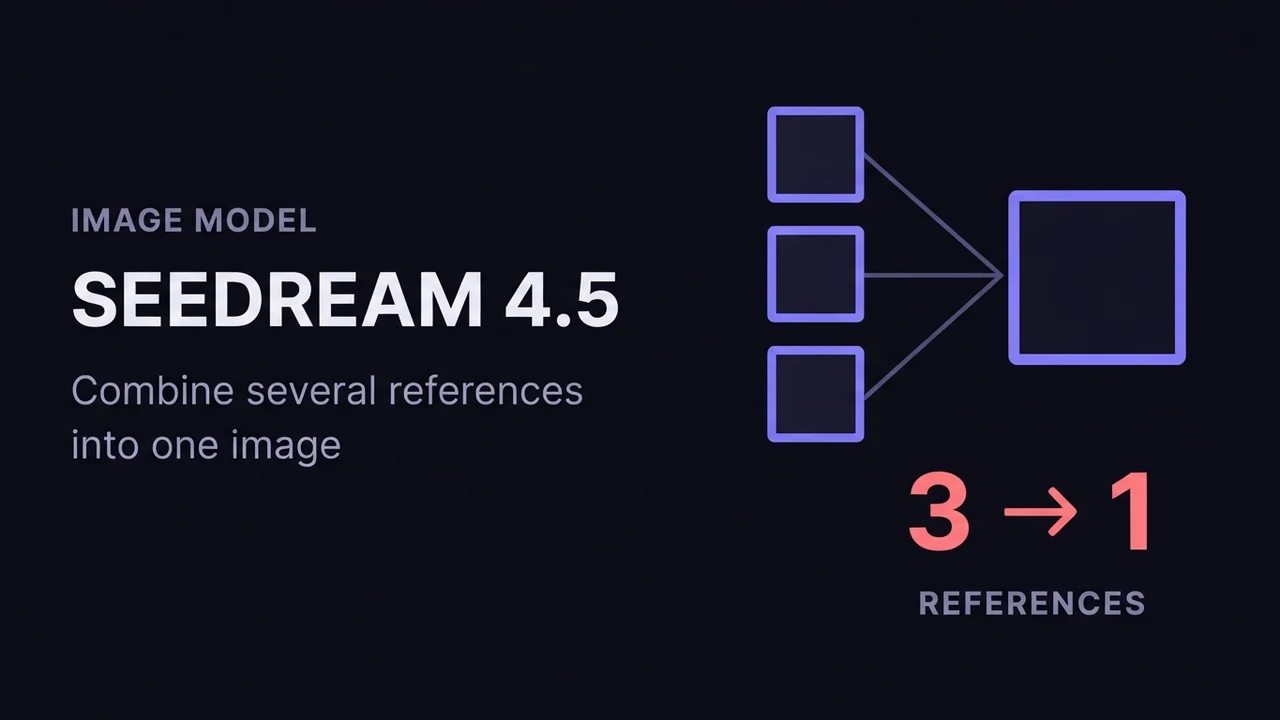
How to use Seedream 4.5 for AI image generation
A practical guide to ByteDance Seedream 4.5: how its text-to-image and image-to-image (multi-image fusion) modes work, how to reference input images in a prompt, the resolution and batch settings that matter, and how to get consistent, high-detail results.
Get new prompt files and guides first
One email when a new tested prompt file or model guide goes live. Prompts that survived production, not theory. No spam, unsubscribe anytime.