
Comment générer des vidéos avec Wan 2.2
Écrit par Clement
Wan 2.2 est l'un des modèles image vers vidéo (I2V) ouverts les plus performants disponibles. Vous lui donnez une image fixe et un court prompt décrivant le mouvement, et il anime la scène en quelques secondes de vidéo cohérente. Il garde le sujet constant, gère un vrai mouvement (pas seulement un zoom lent), et tourne sur du matériel GPU accessible.
Ce guide est la version que nous aurions aimé avoir à nos débuts : les réglages exacts qui changent vos résultats, comment écrire un prompt que Wan écoute, et les défauts qui ruinent discrètement un rendu. Il se concentre sur le workflow image vers vidéo, celui que la plupart des gens recherchent.
Ce qu'il vous faut avant de commencer
Une image source (la première image de votre vidéo). Des images nettes et bien éclairées avec un sujet clair s'animent bien mieux que des images chargées ou de basse résolution.
L'accès à Wan 2.2 I2V, soit via un service hébergé qui le propose, soit une installation ComfyUI locale ou cloud avec le modèle Wan 2.2 I2V chargé. Ce guide reste indépendant de l'outil : les réglages ci-dessous s'appliquent partout où vous faites tourner le modèle.
Une description courte et simple du mouvement voulu. Pas une description complète de la scène. Wan connaît déjà la scène grâce à votre image. Vous décrivez ce qui doit bouger.
Étape par étape
Le déroulé entier est court. La qualité vient des réglages et du prompt, traités juste après.
- 1
Choisissez et préparez votre image source
Choisissez une image avec un sujet clair et de l'espace pour le mouvement. Recadrez-la au format que vous voulez pour la vidéo (portrait 9:16 pour le social, paysage 16:9 pour le large). Wan anime ce qui se trouve dans le cadre : si un membre ou un objet est coupé, le mouvement y semblera faux.
- 2
Réglez les dimensions de sortie
Faites correspondre la résolution supportée par le modèle à votre format (voir le tableau des réglages). Ne saisissez pas une taille arbitraire. Wan attend des dimensions qui sont des multiples de la taille de bloc du modèle, et des tailles hors spécification provoquent des étirements ou des rendus ratés.
- 3
Écrivez le prompt de mouvement
Décrivez le mouvement en une ou deux phrases claires avec des verbes au présent progressif ("elle tourne lentement la tête, ses cheveux bougent dans le vent"). Décrivez le mouvement, pas la scène. Restez précis et physiquement plausible.
- 4
Réglez frames, steps et guidance
Utilisez les valeurs recommandées du tableau comme point de départ. Elles contrôlent la durée du clip, le calcul que chaque rendu demande, et à quel point Wan suit votre prompt.
- 5
Générez, puis itérez sur la seed
Lancez-le. Si le mouvement est proche sans être parfait, changez uniquement la seed et relancez avant de tout modifier. Wan est stochastique, et une seed différente corrige souvent un résultat étrange avec les mêmes réglages. Lors de nos propres tests, environ un rendu sur cinq demandait exactement cela : le mouvement était bon, le rendu était juste tombé sur une seed malchanceuse.
Réglages recommandés (base)
Partez d'ici, puis ajustez une variable à la fois. Ce sont des valeurs par défaut sensées pour Wan 2.2 I2V ; votre outil peut en exposer plus ou moins.
- Workflow
- Image vers vidéo (I2V)
- Résolution
- Adaptez le format à une taille supportée (par ex. classe 480p/720p) ; gardez les dimensions sur le multiple requis par le modèle
- Durée du clip
- ~5 secondes est le point d'équilibre fiable ; les clips plus longs dérivent
- Frames
- À régler sur vos secondes cibles × les fps du modèle
- Steps
- Commencez modéré ; plus de steps = plus propre mais plus lent, avec des rendements décroissants
- Guidance / CFG
- Modéré (trop élevé sur-cuit et ajoute des artefacts ; trop bas ignore votre prompt)
- Seed
- Fixe pendant les réglages (pour comparer à l'identique) ; aléatoire pour explorer des variations
Comment écrire un prompt de mouvement Wan qui fonctionne
Commencez par le mouvement du sujet au présent progressif : "marche", "tourne", "sourit". Wan répond à une action continue décrite.
Ajoutez un mouvement secondaire pour le réalisme : un mouvement d'environnement comme le vent dans les cheveux, la vapeur qui monte, l'eau qui coule, une lumière qui vacille. Ces petits indices font qu'un clip paraît vivant plutôt qu'une photo déformée.
Restez plausible et court. Demander un mouvement large, rapide ou physiquement impossible en quelques secondes est le moyen le plus sûr d'obtenir une distorsion. Un mouvement petit et crédible paraît haut de gamme ; un grand mouvement chaotique paraît cassé.
Recevez les nouveaux guides par email
Un email quand nous publions de nouveaux guides et analyses de modèles. Pas de spam, désinscription à tout moment.
Problèmes courants et solutions
Le sujet fond ou se déforme : le prompt de mouvement est trop ambitieux, ou la guidance trop élevée. Simplifiez le mouvement et baissez la guidance.
À peine de mouvement : le prompt est trop vague ou la guidance trop basse. Utilisez un verbe concret au présent progressif et augmentez un peu la guidance.
Scintillement ou artefacts : augmentez légèrement les steps, et assurez-vous que votre image source est nette. Wan amplifie le bruit d'entrée.
Mauvais format / étirement : vos dimensions sont hors spécification. Utilisez une résolution supportée pour votre format.
Mouvement de caméra : à faire et à éviter
Wan anime un mouvement de caméra si vous le demandez, mais seuls des mouvements simples et clairement décrits fonctionnent. Utilisez ceci comme vocabulaire et garde-fous.
- À faire : nommez le mouvement simplement
- "la caméra avance lentement", "panoramique vers la gauche", "inclinaison vers le haut", "recul". Des mouvements simples et uniques au présent progressif sont ce que le modèle comprend.
- À faire : gardez-le lent et unique
- Un seul mouvement de caméra doux par clip. Le lent paraît cinématographique ; un léger avant ou panoramique suffit presque toujours.
- À éviter : n'empilez pas les mouvements contradictoires
- "zoomer en orbitant et en s'inclinant" donne au modèle des instructions contradictoires et produit des déformations. Choisissez-en un.
- À éviter : n'inventez pas un mouvement de caméra pour un mouvement de sujet
- Si vous voulez que le sujet bouge, décrivez le sujet, pas la caméra. Ajouter un mouvement de caméra inutile est une source courante de distorsion.
- À éviter : ne demandez pas de mouvements rapides ou complexes
- Les panoramiques brusques, les travellings rapides et les mouvements spectaculaires en quelques secondes déforment. Si vous ne mentionnez pas la caméra, le modèle la garde immobile, souvent le meilleur choix.
Où se situe la 2.2 aujourd'hui
Wan 2.2 est la bête de somme légère, rapide et peu coûteuse de la gamme, et elle reste le bon outil pour beaucoup de travaux : clips silencieux, boucles rapides, vignettes animées, et chaque fois que vous générez en volume et que le coût par clip compte. C'est aussi le meilleur endroit pour apprendre : tout ce que vous pratiquez ici se transfère directement vers les versions plus récentes.
Quand vous la dépassez, il y a deux marches au-dessus. Wan 2.5 est la montée en qualité pour les clips que vous comptez garder : mouvement plus stable, détail plus fin, et audio natif, au prix de plus de calcul. Wan 2.7 est le palier haut de gamme au-dessus, ajoutant des clips bien plus longs (jusqu'à environ quinze secondes) en une seule passe. Prenez-les quand la qualité, le son ou la durée est l'objectif ; restez sur la 2.2 quand ce sont la vitesse et le coût.
Où aller ensuite
Une fois que vous obtenez de façon fiable des clips propres de 5 secondes, les compétences suivantes sont l'enchaînement de clips pour des séquences plus longues et l'accord du mouvement avec l'audio. Nous les couvrons dans des guides de suivi.
Continuer la lecture
How to get slow motion in Wan 2.2
Two reliable routes to slow motion in Wan 2.2: prompt patterns that produce slow, stable movement in the render itself, and the post-process interpolation route when you need true half-speed smoothness.
How to generate videos with Wan 2.5
What changed in Wan 2.5 versus 2.2, including native audio, and how to get the most out of it for image-to-video: the new settings worth touching, when the upgrade helps, and when it doesn't.
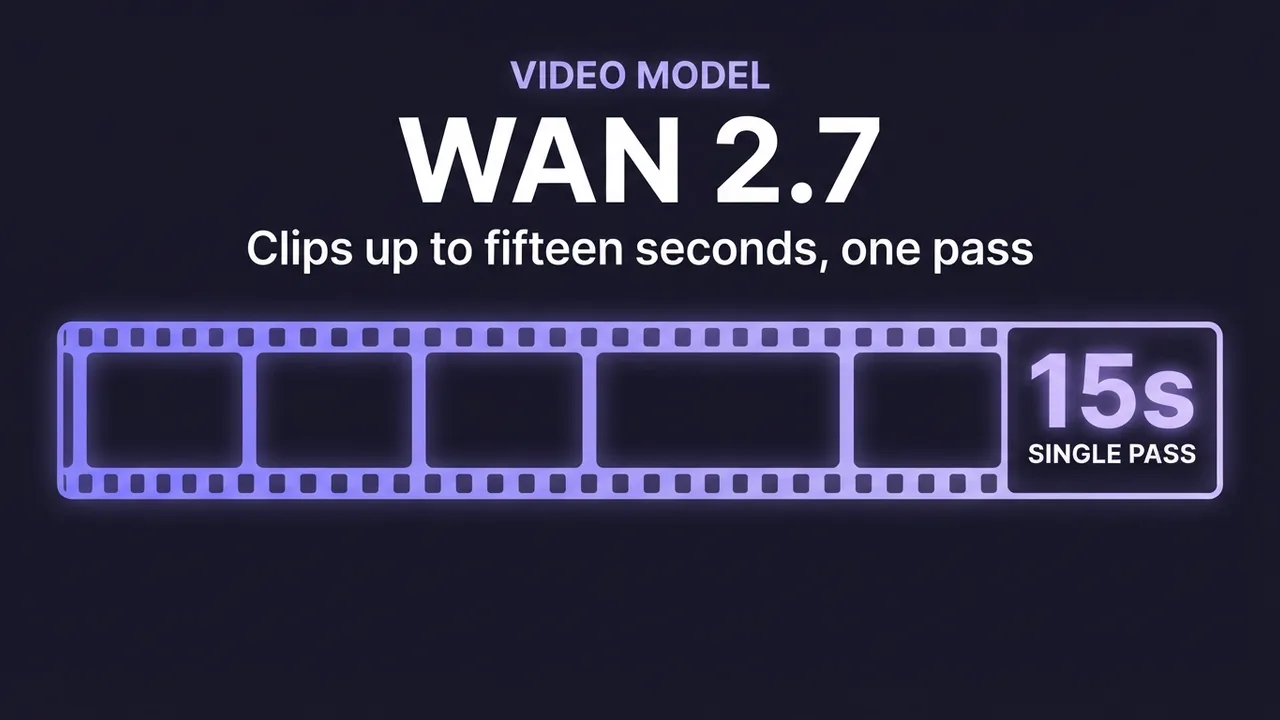
How to generate videos with Wan 2.7
A practical guide to Wan 2.7 image-to-video: clips up to about fifteen seconds, built-in prompt optimization, and refined native audio. What the model adds over 2.5, how to prompt sound, and how to script a longer clip so it holds together.
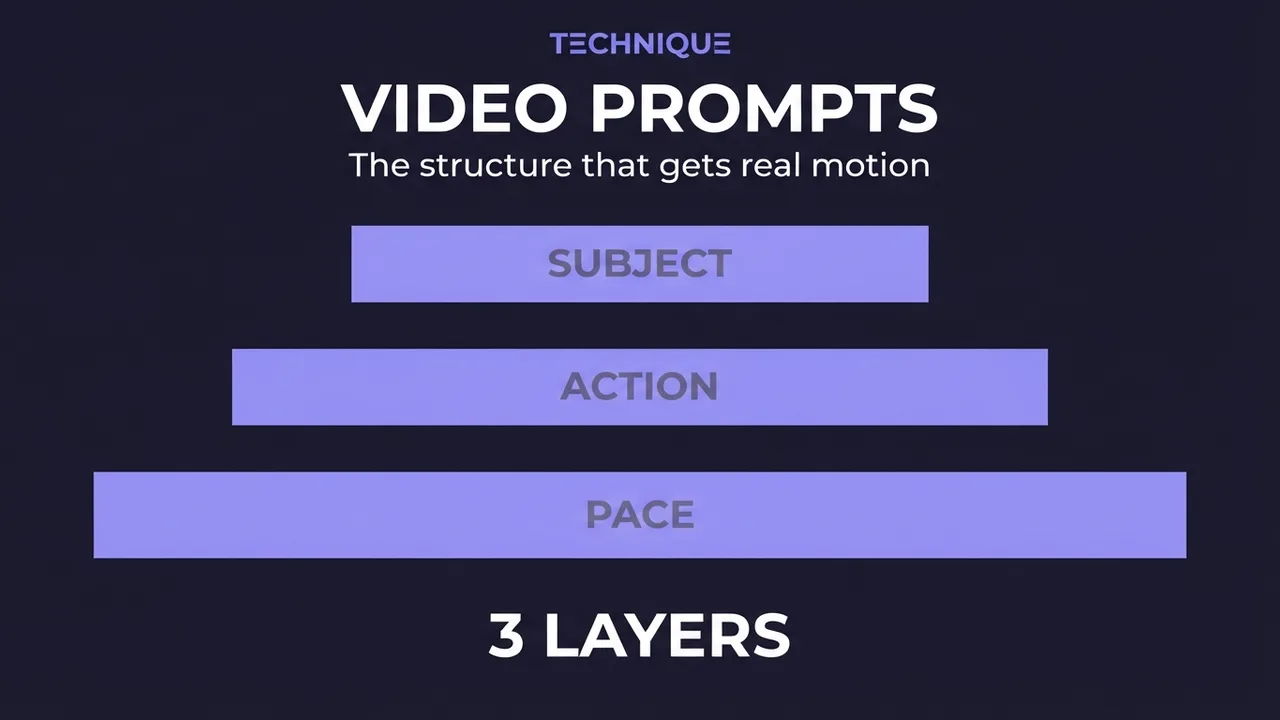
How to write prompts for AI video generation
The prompt structure that works for AI video: why motion prompts are different from image prompts, the present-progressive rule, and the specific phrasing that gets you believable movement instead of a warped photo.
How to fix flickering AI video: 4 causes and fixes
AI video that flickers, shimmers, or morphs between frames has 4 usual causes. Here's how to diagnose and fix each one: source-image noise, too-few steps, over-long clips, and unstable prompts. Step by step.
How to make longer AI videos: 4 methods that work
AI video models cap out at a few seconds. Here are the 4 methods that extend them: chaining clips, last-frame continuation, and keeping motion consistent across every join. Step by step, free.
Recevez les nouveaux guides par email
Un email quand nous publions de nouveaux guides et analyses de modèles. Pas de spam, désinscription à tout moment.