
How to generate videos with Wan 2.7
Written by Clement
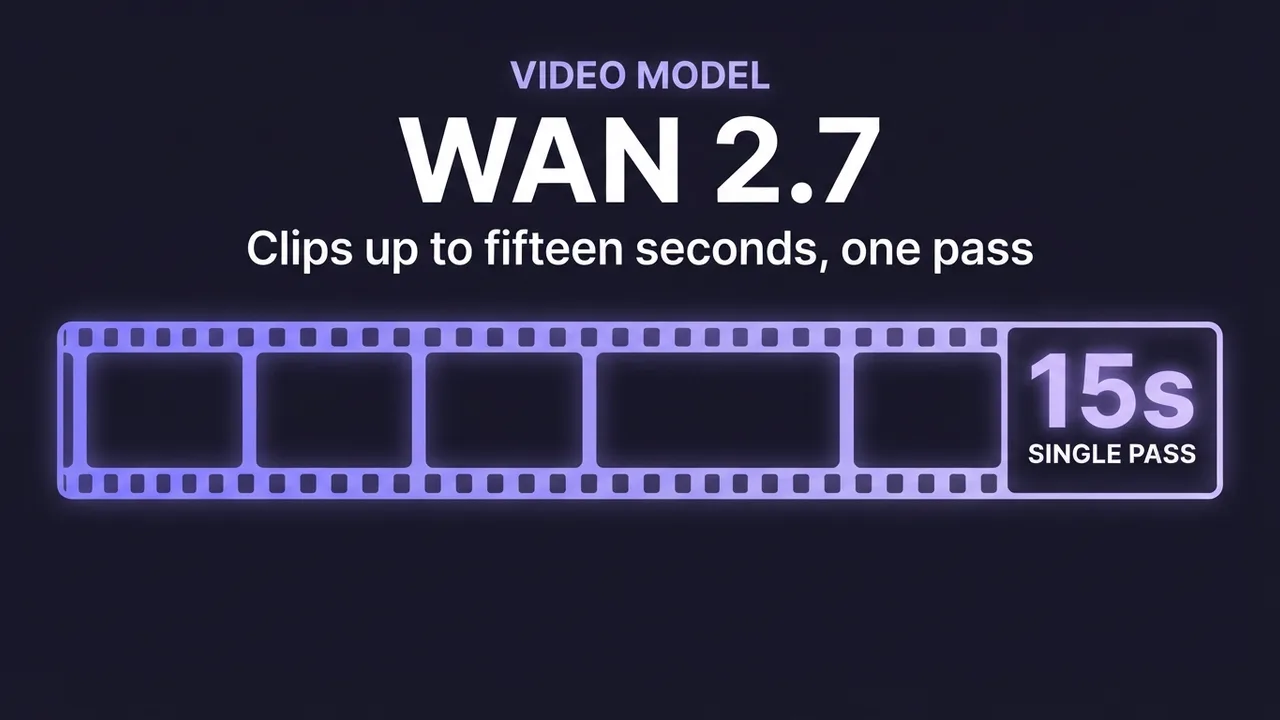
Wan 2.7 is the premium tier of the Wan image-to-video line, and it changes what a single generation can do. Wan 2.5 already introduced native audio; 2.7 pushes clips much further, up to around fifteen seconds, and can optimize your prompt for you before it runs. That combination lets one render carry a small, complete moment instead of a fragment you have to assemble later.
This guide covers what 2.7 adds over 2.5, and the two skills that matter most at this tier: prompting audio well, and scripting a longer clip second by second so it stays coherent across its full length. If you have never run a Wan I2V workflow, start with the Wan 2.2 walkthrough for the basics, then come back: everything here builds on that foundation.
The panel above is an illustration of the workflow, not a live tool.
Want to make one? Grab the free prompt file. It turns ChatGPT, Claude, or Gemini into a specialist for this.
Get the free prompt file →What 2.7 adds over 2.5
Much longer clips. This is the headline. Where 2.5 caps out around five to eight seconds, 2.7 runs flexibly from about two up to roughly fifteen seconds. Fifteen seconds is long enough to hold a short beginning-middle-end, which is why 2.7 is aimed at finished, watchable content rather than raw motion assets.
Built-in prompt optimization. The model can expand and refine a short prompt for you before generating. This lowers the skill floor (a rough prompt still gives a decent result) but knowing how to write a strong prompt yourself still gives you far more control over the outcome.
Audio carries over from 2.5, and generating it across a much longer clip is a harder problem than a five-second one. Treat it as the same feature under more pressure, not a new one; the prompting advice below and 2.5's audio behavior both apply, whichever tier you're on.
The cost of all this is real. 2.7 is the expensive tier and a heavier model, so each second costs more and takes longer than the same second on 2.5. It earns that cost when length is the point; it wastes it when it isn't.
Step-by-step
The core workflow is the familiar I2V flow. The new work is in the prompt (audio and timing), covered in the sections after this.
- 1
Load Wan 2.7 and prepare your source image
Point your tool at the 2.7 I2V model. Prepare the source image exactly as for any Wan version: one clear subject, sharp, cropped to your target aspect ratio. The stronger model still can't invent detail a soft image doesn't contain.
- 2
Decide your clip length up front
Because 2.7 runs from about 2 to 15 seconds and you pay per second, pick the length the moment needs before you write the prompt. A short reaction wants 2-4 seconds; a small self-contained scene wants the longer end. Length shapes how you write the prompt.
- 3
Write the motion prompt, and the audio
Describe the movement in present-progressive verbs as always, then add what should be heard. On an audio model, sound is part of the prompt, not an afterthought. See the audio section below for how.
- 4
For longer clips, script it on a timeline
Past a few seconds, a single sentence of motion isn't enough to fill the clip coherently. Lay the action out second by second so the model knows the sequence. The timeline section below shows the format.
- 5
Let prompt optimization help, then take control
If your tool offers built-in prompt optimization, use it for a first pass to see what a fuller prompt looks like. Then edit it toward what you want. The optimizer is a starting point, not the final say.
- 6
Generate, review with sound on, iterate
Always review a 2.7 clip with audio playing. A clip that looks fine can have mismatched or off sound. If motion is right but audio is wrong, adjust only the audio part of the prompt and re-run.
Prompting native audio
Treat sound as a described layer, the same way you describe motion. Name the ambient sound of the scene ("waves rolling onto the shore," "a quiet room tone with distant traffic," "wind moving through trees") so the audio matches what's on screen. Mismatched sound is more jarring than no sound at all.
For voice, describe the manner, not a script you need read verbatim: "she is speaking softly," "a calm, warm voice." Keep it simple and let the model fit the voice to the subject and motion. Over-specifying a long line of dialogue in a few seconds is the audio equivalent of asking for too much motion.
Keep audio and action in sync. If the subject's mouth moves, the voice should be present; if a wave breaks on screen, the sound should land with it. When in doubt, describe fewer, simpler sounds that belong to what's visible: a clean, matched soundscape beats a busy, drifting one.
Set expectations honestly: audio quality isn't always reliable. We've had renders where a collision on screen produced a sound that didn't land right, and human vocalizations (moans, grunts, that register) come out flat or off compared to how they should sound for the visible action. Review every clip with sound on before you ship it; the visual can be perfect while the audio quietly isn't.
Scripting a longer clip on a timeline
A five-second clip can run on a single sentence of motion. A fifteen-second clip cannot: left to one instruction, the model runs out of direction and the back half drifts or repeats. The fix is to script the clip as a timeline, giving the action second by second.
Write it as timestamps: a line for each second (or every couple of seconds) describing what is happening at that moment. "At 00:00, she is standing at the window looking out. At 00:03, she turns slowly toward the camera. At 00:06, she smiles and steps forward." Each beat hands off to the next, so the model always knows what comes next and the clip reads as one continuous action instead of a loop that lost its way.
Keep each beat small and physically continuous with the one before it. A person can turn, step, and smile in fifteen seconds; they cannot cross a room and change outfits. The timeline is for pacing and sequence, not for cramming in more than the runtime can hold.
Get new prompt files and guides first
One email when a new tested prompt file or model guide goes live. Prompts that survived production, not theory. No spam, unsubscribe anytime.
Recommended settings (baseline)
Start here, then adjust one variable at a time. 2.7 exposes length and audio as first-class choices that earlier versions didn't.
- Workflow
- Image-to-video (I2V), Wan 2.7 model
- Resolution
- 720p or 1080p; 1080p costs more per second (use it only when the output warrants it)
- Clip length
- 2-15 seconds; pick per moment, and remember cost scales directly with seconds
- Audio
- Native: describe ambient sound and/or voice in the prompt; leave silent only if you'll replace the sound
- Prompt
- For clips beyond ~5s, script the action on a second-by-second timeline
- Prompt optimization
- Optional first pass to expand a rough prompt; edit its output toward your intent
- Seed
- Fixed while tuning so you compare like-for-like; randomize to explore variations
When a cheaper model is the smarter call
Silent, short assets. If you need loops, animated thumbnails, or quick social clips with no sound and no need for length, 2.2 does it for a fraction of the cost. Paying for 2.7's audio and duration you won't use is pure waste.
High-volume work. When you need many clips and per-clip cost dominates, the cheaper models are the right engine. Reserve 2.7 for the hero pieces where audio and a full fifteen seconds change what the viewer gets.
Fast exploration. Burn through your rough ideas on a light, cheap model, then bring only the winner to 2.7 for the finished, sounded version.
Common problems and fixes
Audio doesn't match the scene: your prompt described sound that isn't on screen, or none at all. Name the specific ambient sound that belongs to the visible action, and keep it simple.
Long clip drifts or repeats in the back half: you gave one instruction for too much runtime. Script it as a second-by-second timeline so every beat has direction.
Costs are ballooning: you're iterating at the premium tier. Move trial-and-error to short, silent, lower-resolution runs and reserve full 2.7 renders for finals.
Optimized prompt changed your intent: the built-in optimizer expanded the prompt in a direction you didn't want. Treat its output as a draft and edit it back toward your goal.
Keep reading
How to generate videos with Wan 2.5
What changed in Wan 2.5 versus 2.2, including native audio, and how to get the most out of it for image-to-video: the new settings worth touching, when the upgrade helps, and when it doesn't.
How to generate videos with Wan 2.2 (free, step-by-step)
A tested, step-by-step walkthrough for turning a single image into smooth AI video with Wan 2.2: the exact settings that matter, the prompt structure that works, and the mistakes that waste renders. Free.
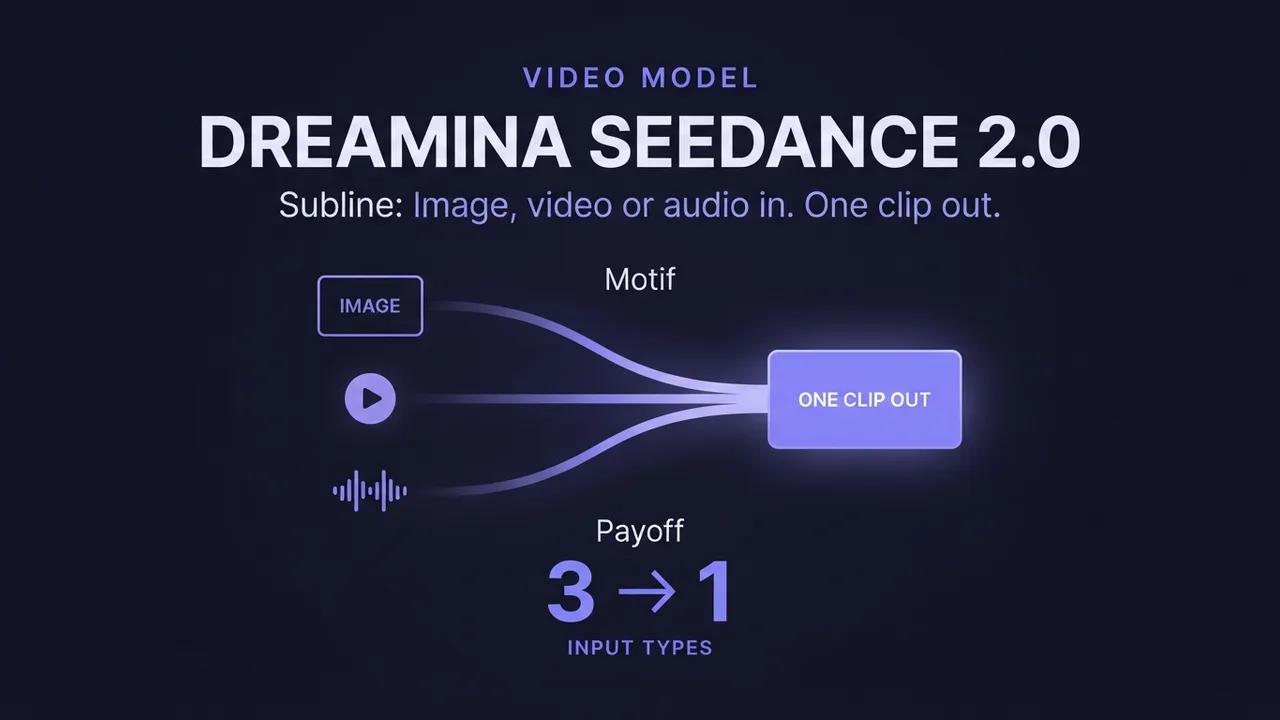
How to use Dreamina Seedance 2.0 (multimodal AI video)
A practical guide to Dreamina Seedance 2.0: how to generate video from image, video, and audio references, edit an existing video, and extend a clip. Plus how the standard, fast, and mini tiers differ so you pick the right one.
How to make longer AI videos: 4 methods that work
AI video models cap out at a few seconds. Here are the 4 methods that extend them: chaining clips, last-frame continuation, and keeping motion consistent across every join. Step by step, free.
How much does AI video generation cost?
A clear breakdown of what AI video costs: per-second pricing, why resolution and audio change the bill, how to estimate a clip before you generate it, the free local alternative, and where the hidden costs like upscaling hide.
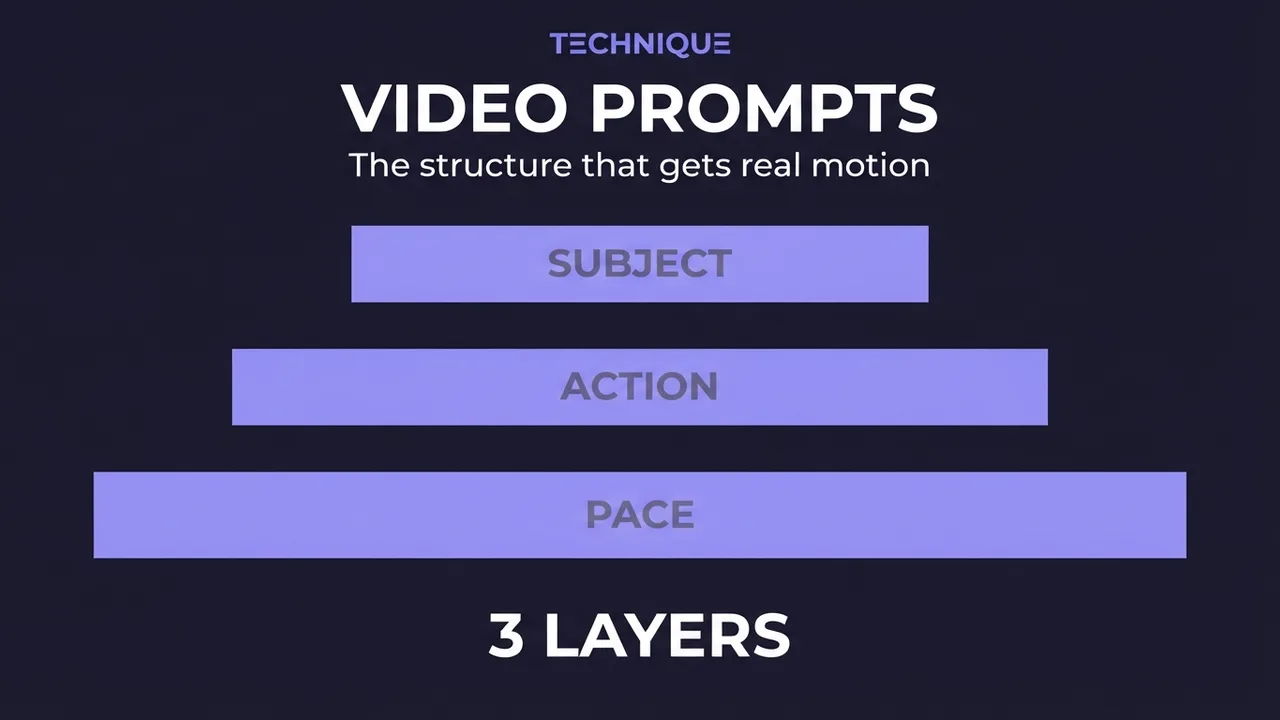
How to write prompts for AI video generation
The prompt structure that works for AI video: why motion prompts are different from image prompts, the present-progressive rule, and the specific phrasing that gets you believable movement instead of a warped photo.
Get new prompt files and guides first
One email when a new tested prompt file or model guide goes live. Prompts that survived production, not theory. No spam, unsubscribe anytime.