
How to generate videos with Wan 2.2 (free, step-by-step)
Written by Clement
Wan 2.2 is one of the strongest open image-to-video (I2V) models available. You give it a still image and a short prompt describing the motion, and it animates the scene into a few seconds of coherent video. It keeps the subject consistent, handles real motion (not just a slow zoom), and runs on accessible GPU hardware.
This guide is the version we wish we had when we started: the exact settings that change your results, how to write a prompt Wan listens to, and the failure modes that quietly ruin a render. It focuses on the image-to-video workflow, which is what most people want.
What you need before you start
A source image (the first frame of your video). Sharp, well-lit images with a clear subject animate far better than busy or low-resolution ones.
Access to Wan 2.2 I2V, either through a hosted service that offers it, or a local/cloud ComfyUI setup with the Wan 2.2 I2V model loaded. This guide is tool-agnostic: the settings below apply wherever you run the model.
A short, plain description of the motion you want. Not a full scene description. Wan already has the scene from your image. You are describing what should move.
Step-by-step
The whole flow is short. The quality comes from the settings and prompt, covered right after.
- 1
Pick and prepare your source image
Choose an image with one clear subject and some empty space for movement. Crop it to the aspect ratio you want the video in (portrait 9:16 for social, landscape 16:9 for wide). Wan animates what is in the frame: if a limb or object is cut off, motion there will look wrong.
- 2
Set the output dimensions
Match the model's supported resolution for your aspect ratio (see the settings table). Do not feed an arbitrary size. Wan expects dimensions that are multiples of the model's block size, and off-spec sizes cause stretching or failed renders.
- 3
Write the motion prompt
Describe the movement in one or two clear sentences using present-progressive verbs ("she is slowly turning her head, hair moving in the wind"). Describe the motion, not the scene. Keep it specific and physically plausible.
- 4
Set frames, steps, and guidance
Use the recommended values in the settings table as your baseline. These control how long the clip is, how much compute each render takes, and how closely Wan follows your prompt.
- 5
Generate, then iterate on the seed
Run it. If the motion is close but not perfect, change only the seed and re-run before you start changing everything else. Wan is stochastic, and a different seed often fixes an odd result with the same settings. In our own testing, roughly one in five renders needed exactly this: the motion was right, the render had just landed on an unlucky seed.
Recommended settings (baseline)
Start here, then adjust one variable at a time. These are sane defaults for Wan 2.2 I2V; your tool may expose more or fewer of them.
- Workflow
- Image-to-video (I2V)
- Resolution
- Match aspect ratio to a supported size (e.g. 480p/720p class); keep dimensions on the model's required multiple
- Clip length
- ~5 seconds is the reliable sweet spot; longer clips drift
- Frames
- Set to your target seconds × the model's fps
- Steps
- Start moderate; more steps = cleaner but slower, with diminishing returns
- Guidance / CFG
- Moderate (too high over-bakes and adds artifacts; too low ignores your prompt)
- Seed
- Fixed while tuning (so you compare like-for-like); randomize to explore variations
How to write a Wan motion prompt that works
Lead with the subject's motion in present-progressive form: "is walking", "is turning", "is smiling". Wan responds to described continuous action.
Add secondary motion for realism: environmental movement like wind in hair, rising steam, flowing water, a flickering light. These small cues make a clip read as alive rather than a warped photo.
Keep it plausible and short. Asking for large, fast, or physically impossible motion in a few seconds is the fastest way to get distortion. Small, believable motion looks premium; big chaotic motion looks broken.
Get new guides by email
One email when we publish new guides and model breakdowns. No spam, unsubscribe anytime.
Common problems and fixes
Subject melts or warps: motion prompt is too ambitious, or guidance is too high. Simplify the motion and lower guidance.
Barely any movement: prompt is too vague or guidance too low. Use a concrete present-progressive verb and nudge guidance up.
Flicker or artifacts: raise steps a little, and make sure your source image is sharp. Wan amplifies input noise.
Wrong aspect / stretching: your dimensions are off-spec. Use a supported resolution for your aspect ratio.
Camera movement: do's and don'ts
Wan animates a camera move if you ask for one, but only simple moves described in plain terms work. Use this as your vocabulary and guardrails.
- Do name the move plainly
- "the camera is slowly pushing in", "panning left", "tilting up", "pulling back". Plain, single moves in present-progressive form are what the model understands.
- Do keep it slow and singular
- One gentle camera move per clip. Slow reads as cinematic; a subtle push-in or pan is almost always enough.
- Don't stack conflicting moves
- "zooming in while orbiting and tilting" gives the model contradictory instructions and produces warping. Pick one.
- Don't invent a camera move for subject motion
- If you want the subject to move, describe the subject, not the camera. Adding a camera move you don't need is a common source of distortion.
- Don't ask for fast or complex moves
- Whip pans, fast dollies, and dramatic sweeps in a few seconds distort. If you didn't mention the camera at all, the model holds it steady, often the best choice.
Where 2.2 fits now
Wan 2.2 is the light, fast, low-cost workhorse of the line, and it's still the right tool for a lot of work: silent clips, quick loops, animated thumbnails, and any time you're generating in volume and per-clip cost matters. It's also the best place to learn: everything you practice here carries straight over to the newer versions.
When you outgrow it, there are two steps up. Wan 2.5 is the quality upgrade for clips you intend to keep: steadier motion, finer detail, and native audio, at more compute. Wan 2.7 is the premium tier on top of that, adding much longer clips (up to around fifteen seconds) in one pass. Reach for those when quality, sound, or length is the point; stay on 2.2 when speed and cost are.
Where to go from here
Once you can reliably get clean 5-second clips, the next skills are chaining clips for longer sequences and matching motion to audio. We cover those in follow-up guides.
Keep reading
How to get slow motion in Wan 2.2
Two reliable routes to slow motion in Wan 2.2: prompt patterns that produce slow, stable movement in the render itself, and the post-process interpolation route when you need true half-speed smoothness.
How to generate videos with Wan 2.5
What changed in Wan 2.5 versus 2.2, including native audio, and how to get the most out of it for image-to-video: the new settings worth touching, when the upgrade helps, and when it doesn't.
How to generate videos with Wan 2.7
A practical guide to Wan 2.7 image-to-video: clips up to about fifteen seconds, built-in prompt optimization, and refined native audio. What the model adds over 2.5, how to prompt sound, and how to script a longer clip so it holds together.
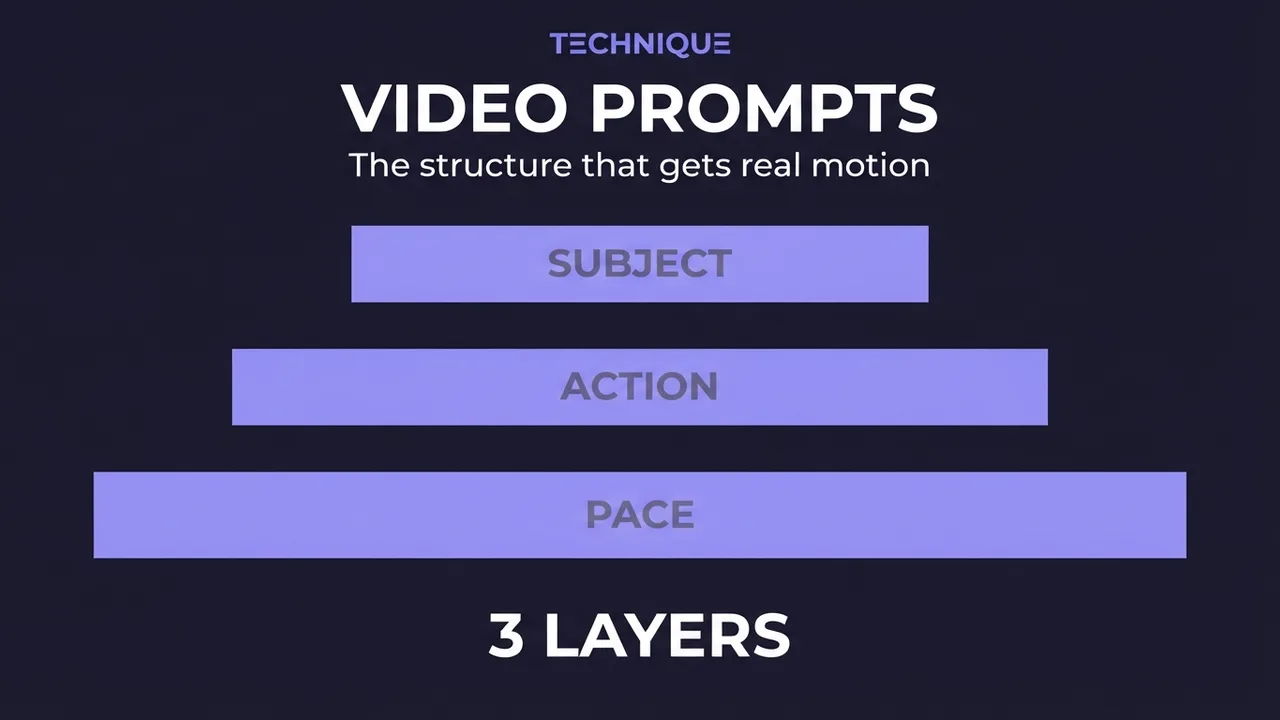
How to write prompts for AI video generation
The prompt structure that works for AI video: why motion prompts are different from image prompts, the present-progressive rule, and the specific phrasing that gets you believable movement instead of a warped photo.
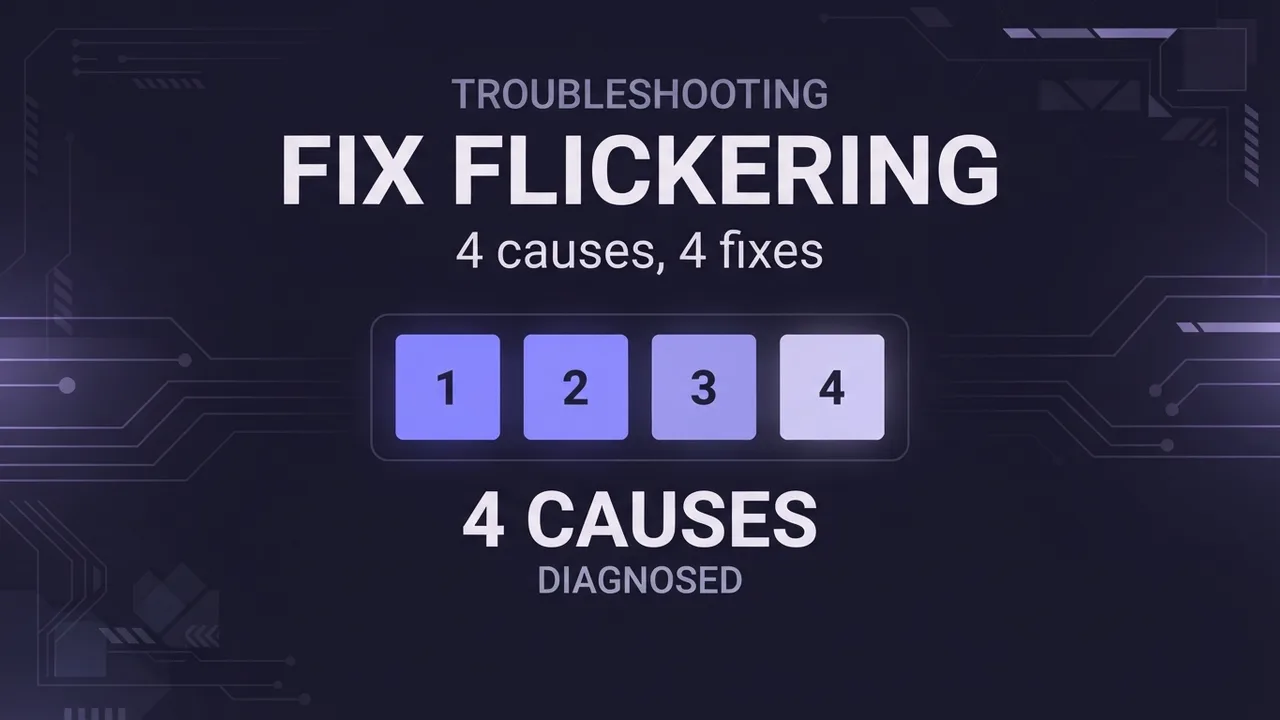
How to fix flickering AI video: 4 causes and fixes
AI video that flickers, shimmers, or morphs between frames has 4 usual causes. Here's how to diagnose and fix each one: source-image noise, too-few steps, over-long clips, and unstable prompts. Step by step.

How to make longer AI videos: 4 methods that work
AI video models cap out at a few seconds. Here are the 4 methods that extend them: chaining clips, last-frame continuation, and keeping motion consistent across every join. Step by step, free.
Get new guides by email
One email when we publish new guides and model breakdowns. No spam, unsubscribe anytime.