
How to use Dreamina Seedance 2.0 (multimodal AI video)
Written by Clement
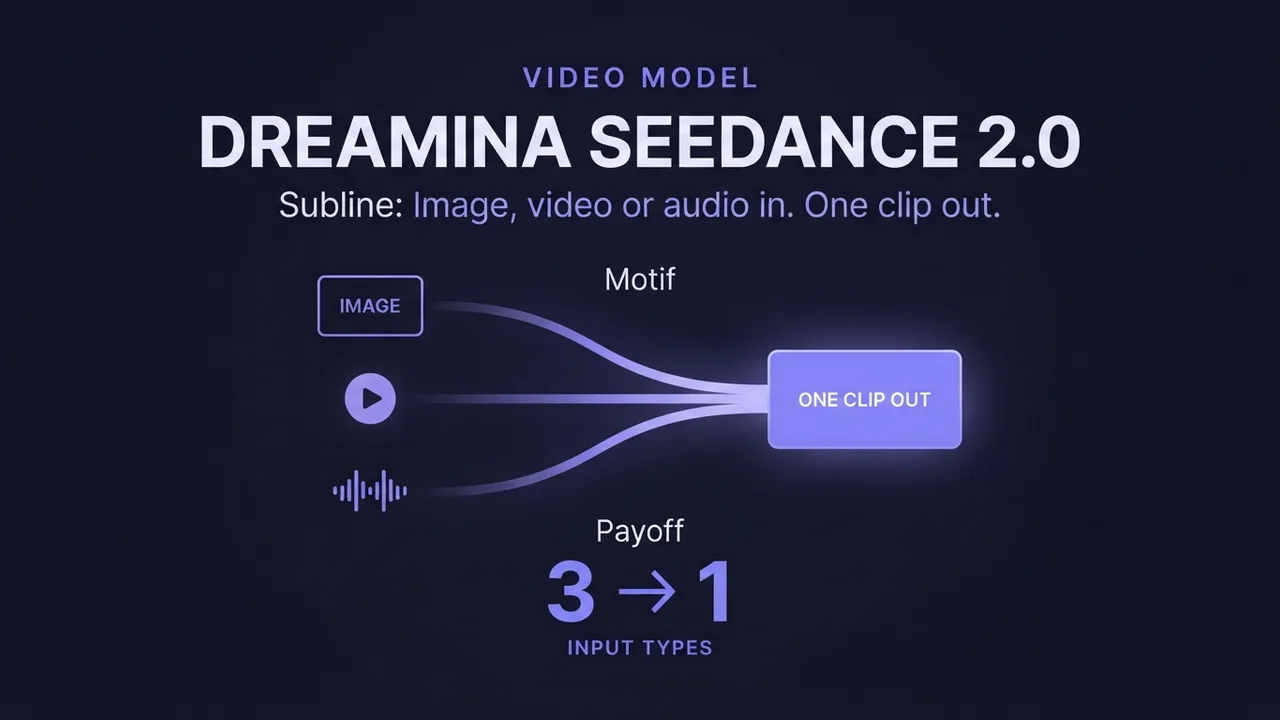
Dreamina Seedance 2.0 is a multimodal video model built around one idea: instead of a single image or a single text prompt, you can reference several different source materials (an image, a video clip, an audio track) in one request, and the model combines them into a new, coherent video. That reference can carry not just a look but a specific action, a voice, or a piece of footage you want reproduced with fidelity.
The same model family also edits an existing video in place (swapping an object, restyling a look) and extends a clip forward, backward, or between two endpoints. This guide covers all three workflows, the reference syntax that ties a prompt to a specific input, and how to choose between the standard, fast, and mini tiers.
The panel above is an illustration of the workflow, not a live tool.
Want to make one? Grab the free prompt file. It turns ChatGPT, Claude, or Gemini into a specialist for this.
Get the free prompt file →What makes this model different: multimodal references
Most video models take one kind of input: a source image, or a text prompt. Seedance 2.0 accepts image, video, audio, and text references together in a single call, and lets your prompt point at each one by name: @Image1, @Video1, @Audio1. The model pulls the specific feature you're asking for from each reference (a person's likeness from an image, an action from a video, a voice from an audio clip) rather than blending everything into an average.
That reference-and-point syntax is the core skill this model rewards. A prompt that says "the girl from @Image1" and "use @Video1 as the action reference" tells the model exactly which pixels or motion to reproduce from which source, the same way HappyHorse reference-to-video numbers its images. Except here the references can be video and audio too, and the model reproduces textures, timbres, camera moves, and visual-effect styles from them, not just appearance.
We tested the @Image1/@Video1 reference syntax directly: naming what each reference contributed the first time we introduced it was the difference between a feature coming through cleanly and being ignored entirely.
Step-by-step: generating from multimodal references
This is the core workflow: combining several reference materials into one new video.
- 1
Gather your reference materials
Collect the image, video, and/or audio references that each contribute one feature to the final scene: a character's appearance from a photo, an action from a video clip, a line of dialogue from an audio file. You don't need all three types; use whichever the shot requires.
- 2
Number and label each reference as you introduce it
Refer to each source by its position and type (@Image1, @Video1, @Audio1) matching the order you supply them. Introduce what each one contributes in plain language the first time you use it, the same discipline as HappyHorse's multi-image prompting.
- 3
Write the scene as a sequence, pointing at references for specific beats
Describe the setting, then the action beat by beat, naming which reference should drive each moment: "she lowers her head to eat noodles, use @Video1 as the action reference." Point at a reference only where you want its specific feature reproduced. The rest of the scene is your own description.
- 4
Choose your resolution and tier
Pick 480P, 720P, 1080P, or 4K (availability depends on the tier; see the settings table), and decide between the standard, fast, or mini model based on how much speed or cost matters for this render versus how much quality and resolution ceiling you need.
- 5
Generate, then check each reference shows up
Review the result specifically for each referenced feature: did the face, the action, and the voice all come through as intended? If one was ignored or blended incorrectly, make its introduction in the prompt more explicit and re-run.
Video editing: changing one thing without re-shooting the rest
Point the model at an existing video with a reference and describe exactly what should change: a subject replacement, an object-level edit, or an inpainting fix. "Replace all dog food packaging in @Video1 with the packaging shown in @Image1" is a complete instruction: it names the source video, the element to replace, and the reference to replace it with.
Precision comes from constraining the instruction. State plainly what must NOT change (camera movement, lighting, people, pacing) so the model treats everything else as fixed and only touches the named element. The source examples for this model explicitly spell out what stays untouched, which is worth copying: over-specifying what shouldn't move protects the rest of the shot from drifting.
Video extension: continuing, prepending, or filling between frames
Extension takes a finished clip and grows it: continuing the action forward from where the source video ends, generating a preceding scene that leads into it, or interpolating between two separate clips so the transition between them is smooth rather than a hard cut.
Describe the extension as a continuous transformation rather than a jump cut: "continue @Video1 with a smooth transition to a leaf's first-person perspective... while the polar bear remains unchanged" tells the model both what changes (the perspective and environment) and what must hold steady (the bear), which is what keeps an extended sequence feeling like one shot instead of two spliced together.
Choosing between standard, fast, and mini
All three share the same reference-to-video, editing, and extension capabilities. The difference is speed, resolution ceiling, and cost.
- Dreamina-Seedance-2.0
- The full model: highest resolution ceiling (up to 4K), most capable at complex scenes and fine detail. Priced by the million tokens, with a separate lower rate when the input excludes video.
- Dreamina-Seedance-2.0-fast
- Same core capabilities, tuned for speed. Resolution caps at 720P; noticeably cheaper per token than the standard tier.
- Dreamina-Seedance-2.0-mini
- The cost-effective tier: roughly half the price of standard. Built for high-frequency, large-scale generation: e-commerce content, batch marketing assets, UGC, effects at volume.
- When to use standard
- Hero content where resolution and fidelity are the point: commercial advertising, film and television production.
- When to use fast
- Iteration and drafts where you need to see results quickly and 720P is enough to judge the shot.
- When to use mini
- Bulk production where per-clip cost dominates and you're generating many similar assets rather than one polished hero clip.
Get new prompt files and guides first
One email when a new tested prompt file or model guide goes live. Prompts that survived production, not theory. No spam, unsubscribe anytime.
Style transfer vs. local replacement vs. full generation
These are three different jobs and the model handles each differently. Full generation (multimodal reference-to-video) builds a new scene from your references. Style transfer applies a look (a color grade, an art style) across a whole clip. Local replacement swaps one specific element while leaving everything else untouched. Word your instruction to match: name the whole scene for generation, the look itself for style transfer, or the specific object and its replacement for local replacement.
Mixing jobs in one instruction (asking for a new scene and a style change and an object swap all at once) is harder for the model to satisfy cleanly than running them as separate, focused passes.
Common problems and fixes
A referenced feature doesn't show up: the prompt named the reference (@Image1, @Video1) without describing what to take from it. Add a plain-language description the first time you introduce each reference.
The edit changed more than intended: the instruction didn't state what should stay fixed. Explicitly name the camera movement, lighting, people, and pacing that must remain unchanged, the way the model's own local-replacement examples do.
An extension feels like two clips stitched together rather than one: the prompt described a jump between states instead of a continuous transformation. Describe the change as something that happens gradually, and name what stays constant across it.
Resolution option isn't available: the fast tier caps at 720P and mini at 720P as well. Move to the standard tier if you need 1080P or 4K.
Costs are adding up faster than expected: check which tier you're running iterations on. Mini is roughly half the price of standard, and fast excludes-video-input pricing is cheaper still. Move trial-and-error to the cheapest tier that still shows you what you need to see.
Where Seedance 2.0 fits versus single-reference tools
Reach for Seedance 2.0 when your shot needs more than one kind of source material: a person's likeness from a photo plus an action from a video plus a voice from audio, in one generation. If you only have one image and want it animated, a simpler image-to-video tool is less to configure for the same result.
The video editing and extension modes are worth knowing even if you generated your source clip elsewhere: you don't need to have generated a video with Seedance to edit or extend it with Seedance afterward, which makes it a useful second-pass tool for fixing or growing a clip from any source.
Keep reading
How to generate videos with Wan 2.7
A practical guide to Wan 2.7 image-to-video: clips up to about fifteen seconds, built-in prompt optimization, and refined native audio. What the model adds over 2.5, how to prompt sound, and how to script a longer clip so it holds together.
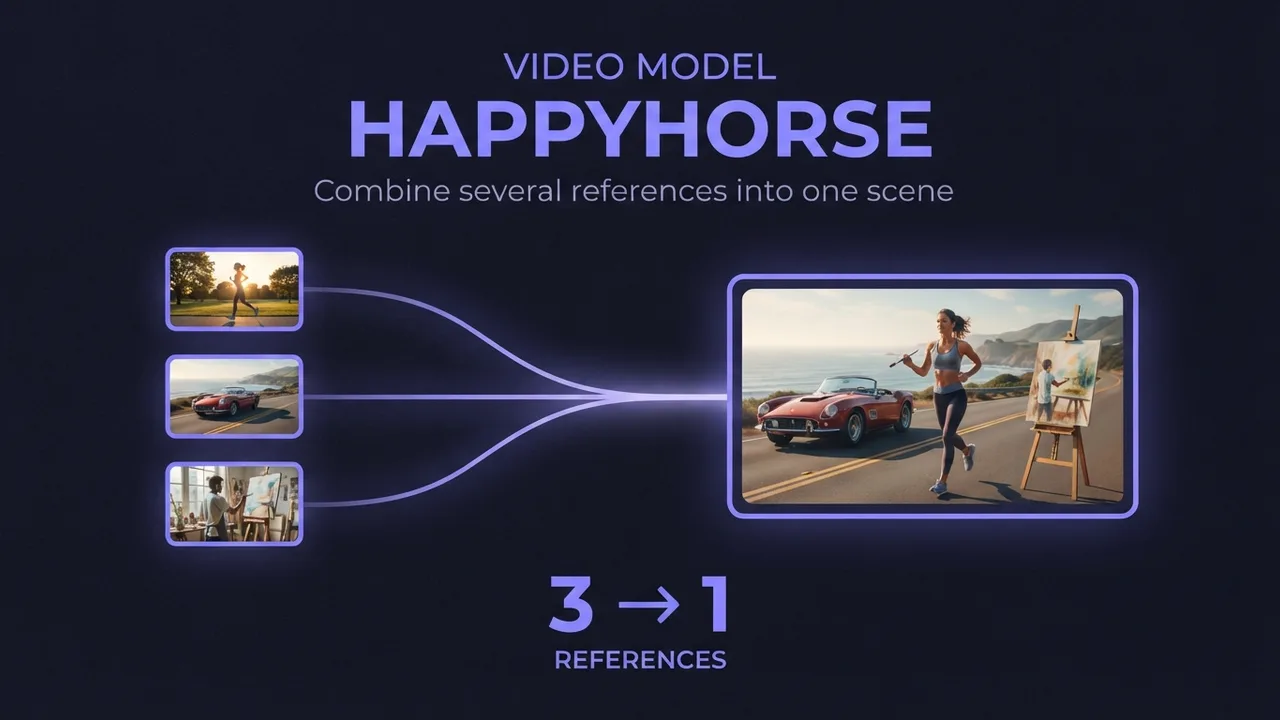
How to use HappyHorse reference-to-video (multi-image AI video)
A practical guide to HappyHorse reference-to-video: how to combine several reference images (a person, an outfit, an accessory) into one AI video scene, how to reference each image in your prompt, and the settings and mistakes that decide whether the shots blend or clash.
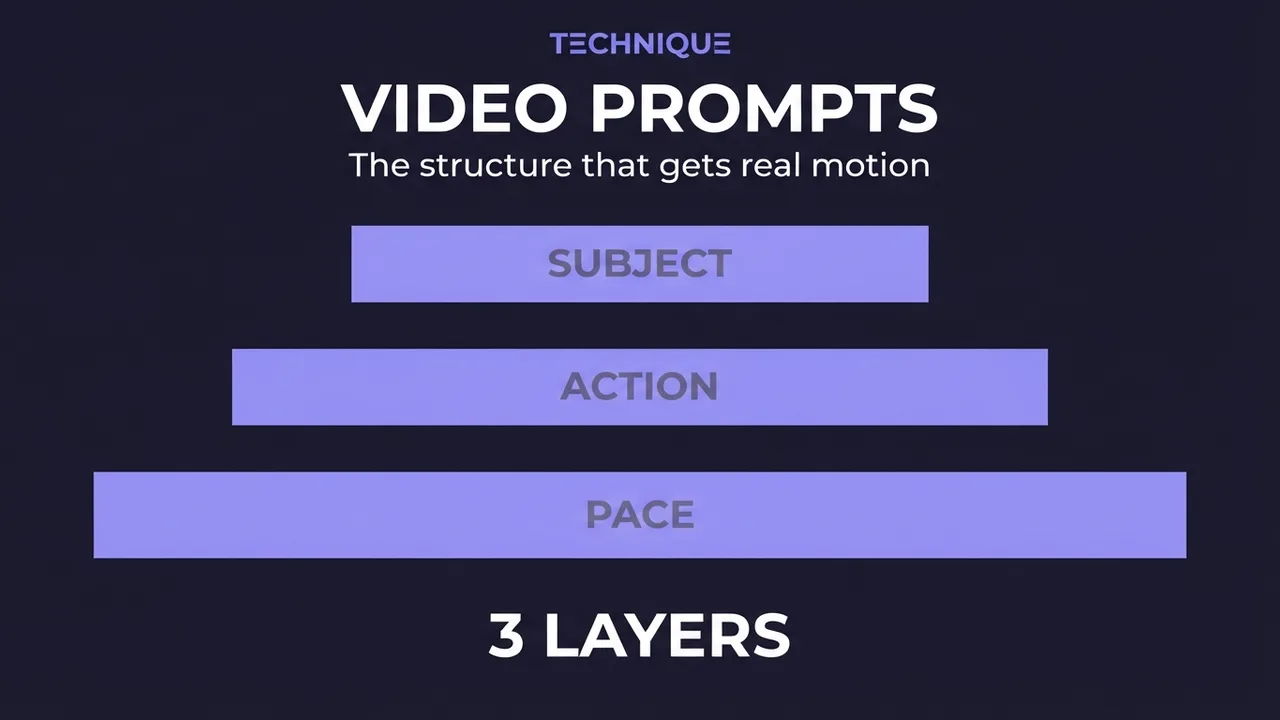
How to write prompts for AI video generation
The prompt structure that works for AI video: why motion prompts are different from image prompts, the present-progressive rule, and the specific phrasing that gets you believable movement instead of a warped photo.
How to make longer AI videos: 4 methods that work
AI video models cap out at a few seconds. Here are the 4 methods that extend them: chaining clips, last-frame continuation, and keeping motion consistent across every join. Step by step, free.
How much does AI video generation cost?
A clear breakdown of what AI video costs: per-second pricing, why resolution and audio change the bill, how to estimate a clip before you generate it, the free local alternative, and where the hidden costs like upscaling hide.
Get new prompt files and guides first
One email when a new tested prompt file or model guide goes live. Prompts that survived production, not theory. No spam, unsubscribe anytime.