
How to turn an image into a video with AI
Written by Clement
Image-to-video (often shortened to I2V) is the workflow where you hand an AI video model a single picture and a description of movement, to generate a video starting from that frame. It is the most reliable way to get controllable AI video, because the model isn't inventing a whole scene: it is animating one you already created.
This guide is deliberately tool-agnostic, so you can apply this knowledge across models.
Want to make one? Grab the free prompt file. It turns ChatGPT, Claude, or Gemini into a specialist for this.
Get the free prompt file →Do it yourself in Qwen Chat (free, just sign up to try)
This is the exact procedure from the video above. Follow along, it costs nothing and takes about twenty seconds of clicking plus the render wait.
- 1
Open Qwen Chat and drop your image on the composer
Drag your picture anywhere onto the message box. Use a good-quality picture. Whatever is in this frame becomes the first frame of your video.
Open chat.qwen.ai - 2
Write your prompt describing the motion you expect
Type the action you want, in the order it should happen. In the example I used "Make the woman blow a kiss toward the camera then smile". Do not describe the setting, the outfit or the lighting, if you don't want to change them. Only mention what should move or change.
- 3
Click + and turn on Create Video
Open the + menu to the left of the input bar and choose Create Video. No need to select an aspect ratio; it will automatically match your image.
- 4
Send it and let it render
Hit the blue arrow. Your image and prompt post as a normal message and a placeholder card appears underneath with a progress bar from 0%. The generation will take around 1 or 2 minutes depending on queue.
- 5
Check the result, then download it
You get a five-second clip in the conversation. Click to play it full-screen and check the motion matches what you asked for. Download saves the MP4. If the motion is close but not right, re-send the same image and rework your prompt a bit with more common motion: complex motions are not well handled by this model.
How image-to-video differs from text-to-video
With text-to-video you describe everything and the model invents the scene, the subject, and the motion for each generation. You get no character stability, so it is hard to make a longer AI video. Video generation also takes more time and money, so each failed render costs you more than generating and editing the first frame ever will.
Image-to-video fixes the scene in place. You supply the first frame, so the subject's appearance and composition are locked. The model's only job is to add believable movement. That constraint is exactly why I2V is the workflow to reach for when you want a specific character or scene.
Choosing a source image that animates well
Quality is the most important factor of your input image. Motion amplifies whatever is already in the frame, so a low-quality, pixelated image comes out as a bad-quality video.
To get better output easily when starting out, use one centered, human-like character. That way the model understands what your main focus is and how to animate the body.
Make sure the motion you ask for is humanly possible and fits in the duration of your video. My example asks for two short beats, a blown kiss then a smile, which fits comfortably in 5 seconds; adding a third action like taking the fruits out of the basket would have been too much. If you plan to have someone walk or turn, don't crop them tight to the edges: the model needs room to move them into, or the motion looks cramped and stretched.
Get new prompt files and guides first
One email when a new tested prompt file or model guide goes live. Prompts that survived production, not theory. No spam, unsubscribe anytime.
Step-by-step
The flow is short and the same across models. The quality lives in steps 1 and 3.
- 6
Prepare the source image
Generate or pick a high-quality image with one clear subject, and crop it to the aspect ratio you want the final video in (portrait for phones and social, landscape for wide screens like desktop). Try to use an exact ratio such as 9:16 or 4:3, to make sure the model is able to process the format.
- 7
Set the output resolution
If it is available on your model, use a resolution the model officially supports for your aspect ratio. Feeding an arbitrary size is the most common cause of stretched or failed output, because most video models expect dimensions that are multiples of a fixed block size.
- 8
Describe only the motion
Write the prompt describing the expected motion as precisely as possible, using present-progressive verbs: "she is turning toward the camera, hair drifting in the wind." Do not re-describe elements in the image if they do not have to move. The image already is the scene.
- 9
Set clip length and guidance
Keep the first clip short, around five seconds, and use a moderate guidance value (most of the time it's the default value of your tool). Start with a short 5s clip at a low resolution, so you reduce the cost and generation time and get direct feedback on the quality of your prompt and setup.
- 10
Generate, then re-roll the seed
Run it. If the motion is nearly right, change only the seed and try again before touching anything else. These models are random, and a new seed often turns a near-miss into a keeper. I tested running the same source image through five seed variations: four came out clean, one warped a hand badly with no visible cause in the prompt or settings. But be careful, complete failures are usually caused by a bad prompt (an impossible motion, or too many motions at once in a short duration).
Settings that matter (any model)
The available settings vary between tools, but these five levers exist almost everywhere and decide the outcome.
- Source image
- High quality, one subject, cropped to target aspect ratio
- Resolution
- A size the model officially supports; don't improvise dimensions, read your model's documentation
- Clip length
- ~5 seconds to start, to assess the quality of your setup
- Motion prompt
- Present-progressive, describes movement only, physically plausible
- Guidance strength
- Moderate (too high over-bakes, too low ignores your prompt)
Common problems and fixes
Subject warps or melts: the requested motion is too big or guidance is too high. Ask for smaller, believable movement and lower guidance.
Almost no movement: the prompt is too vague (or the motion doesn't exist for this model without a LoRA) or guidance is too low. Use a concrete action verb and nudge guidance up.
Stretched or wrong shape: your dimensions aren't a supported size for the aspect ratio. Fix the resolution.
Flicker and grain: usually a bad-quality source image. Start from a high-quality picture. Motion won't hide input noise, it multiplies it.
Where to go next
Once you can reliably animate a single image, the natural next steps are writing stronger motion prompts and stitching clips into longer sequences. We cover both in dedicated guides.
Keep reading
How to use reference-to-video AI (combine images into one clip)
A model-agnostic guide to reference-to-video AI: how to combine several reference images (a person, an outfit, a prop, a location) into one coherent clip, how some engines also take audio and video as references, and the mistakes that decide whether the shot fuses or falls apart.
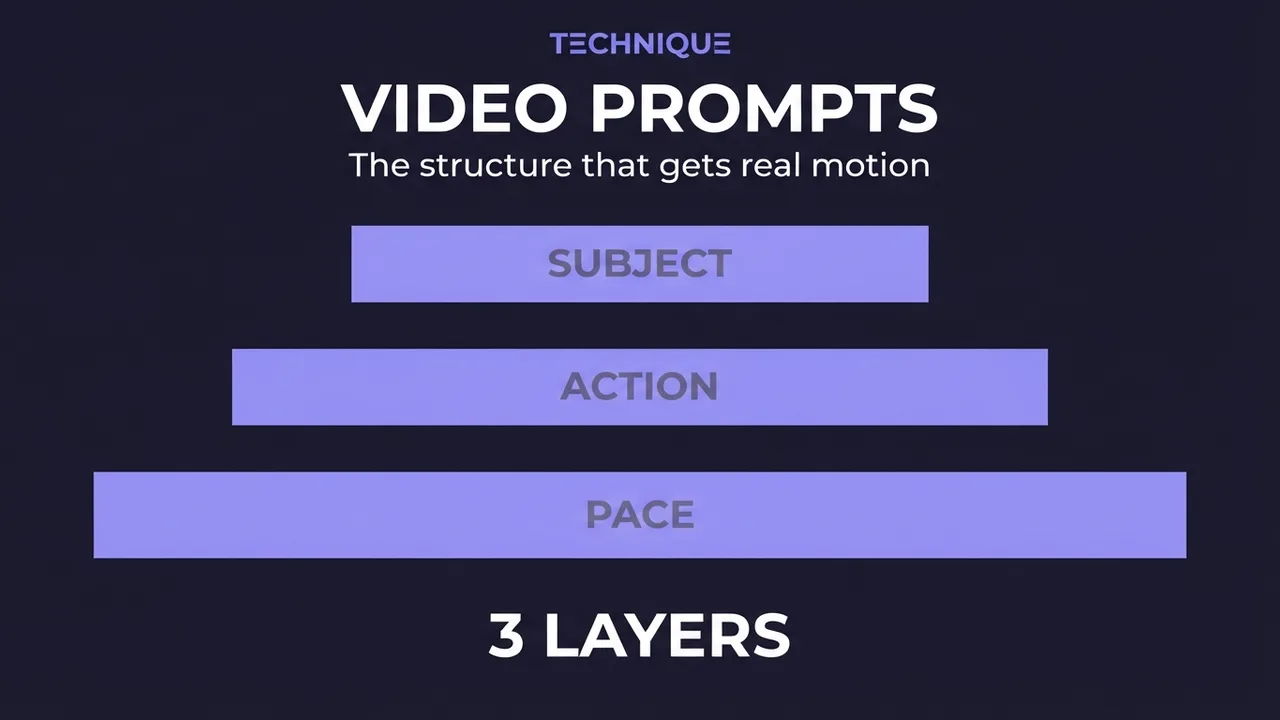
How to write prompts for AI video generation
The prompt structure that works for AI video: why motion prompts are different from image prompts, the present-progressive rule, and the specific phrasing that gets you believable movement instead of a warped photo.
How to fix flickering AI video: 4 causes and fixes
AI video that flickers, shimmers, or morphs between frames has 4 usual causes. Here's how to diagnose and fix each one: source-image noise, too-few steps, over-long clips, and unstable prompts. Step by step.
How to make longer AI videos: 4 methods that work
AI video models cap out at a few seconds. Here are the 4 methods that extend them: chaining clips, last-frame continuation, and keeping motion consistent across every join. Step by step, free.
How to generate videos with Wan 2.2 (free, step-by-step)
A tested, step-by-step walkthrough for turning a single image into smooth AI video with Wan 2.2: the exact settings that matter, the prompt structure that works, and the mistakes that waste renders. Free.
How to use HappyHorse image-to-video (first-frame AI video)
A practical guide to HappyHorse image-to-video: how to turn a single first-frame image and a prompt into smooth AI video, the resolution and duration settings that matter, and the mistakes that waste a render.
Get new prompt files and guides first
One email when a new tested prompt file or model guide goes live. Prompts that survived production, not theory. No spam, unsubscribe anytime.