
TTS Lines: free AI text to speech with editable lines
Written by Clement
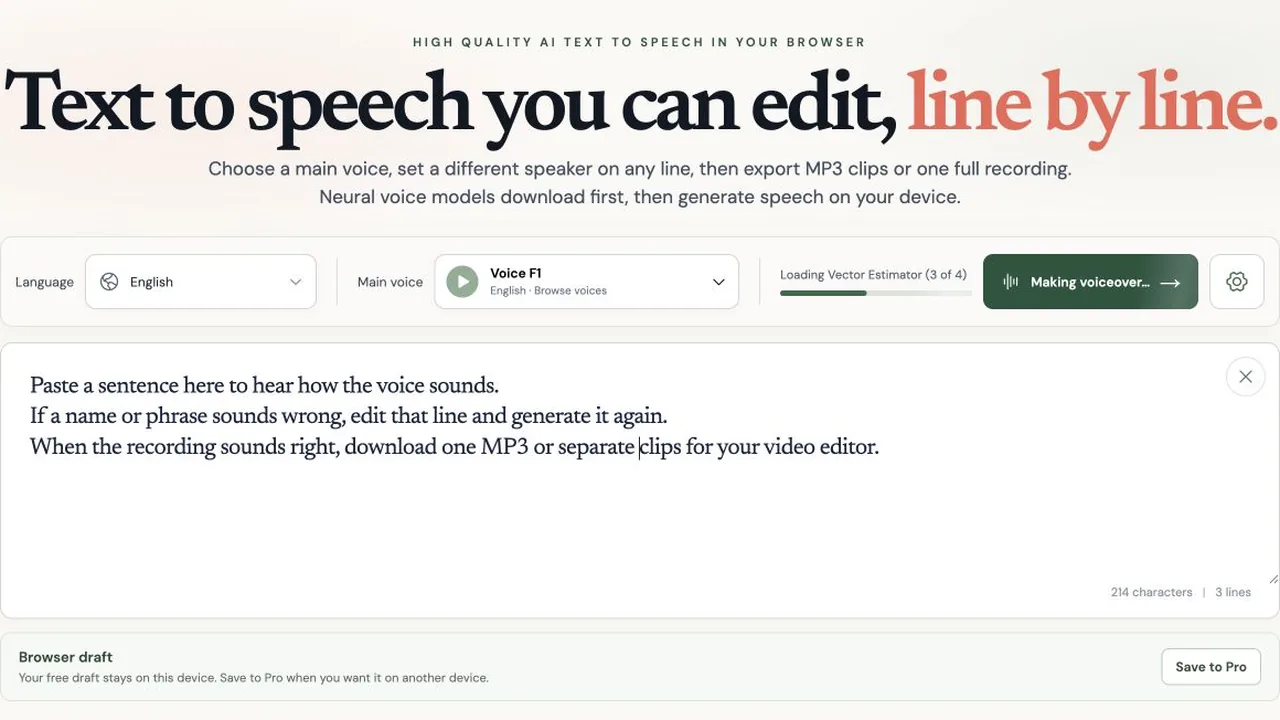
TTS Lines is a free text-to-speech editor that runs in your browser. Every line of your script gets its own audio, so you can fix one sentence without redoing the whole voiceover.
I tested it, and it is really good for building audio with several speakers, then editing it until it says exactly what you want. The voices are not state of the art. For a free tool they are more than enough. It isn't censored either: I never got blocked, and I never hit a limit.
Who I would recommend it to
If you want a voice quickly and don't want to install or set anything up, this is the one I would point you to. A voiceover for a video. A voice for the character your LLM is playing, or for your companion. Or a full conversation between a few speakers, which gets funny fast.
Give each line its own speaker and you can build a whole dialogue. Then change one line, regenerate it, and the rest stays exactly as it was.
It does one job. It does not edit your video, record a human narrator or give you a multitrack timeline. If you only need a single file, join the finished lines into an MP3 or WAV and you are done.
Why the local editor is free
The speech is generated on your device. Your browser downloads a voice model, then turns your text into audio locally. TTS Lines doesn't pay a speech API for each generation, which is why the free editor can stay free.
The good part is that you don't have to think about any of it. You don't have to work out how to download the model or build an interface around it. The model fetches itself the first time you generate, and the editor, the voices and the exports are all there on the page.
The cost still exists, it just sits somewhere else. Your device does the processing and uses the memory, and your connection handles the first download. After that the browser can cache the model, unless you clear site data or switch devices. Speed depends on your browser, device, language and script, so I won't quote you a number.
What runs under the hood
The pieces, as listed on the technology page of TTS Lines:
- Supertonic 3
- The local speech model, covering 31 languages. It runs with ONNX Runtime Web, adapted from Supertone's MIT-licensed browser example. The model itself is under OpenRAIL-M, which includes use restrictions.
- Hebrew
- Hebrew has its own local path, with BlueTTS 2.5 ONNX and ReNikud turning unpointed Hebrew into pronunciation data. Those files also download on first use.
- Exports
- MP3 encoding uses lamejs and JSZip packs individual clips into a ZIP, all in the browser. WAV recordings and SRT captions are built from your lines the same way.
Model permissions and code licenses are separate things. If you use the output in a commercial project, check the terms on the technology page first.
How the editing works, step by step
Here is the flow, shown with a short three-line English script.
- 1
Step 1 of 4
Paste a short script
Open the free editor, choose a language and paste your script.
Each sentence becomes its own editable line. Pick a main voice and select Make voiceover. The first time, you will see the voice engine loading while the model files download.
Open the free editorExample prompt
You have been staring at me for ten minutes, so say something or I start charging by the hour. Fine, that dress should come with a warning label. It does, and it says handle with confidence and never make me ask twice.
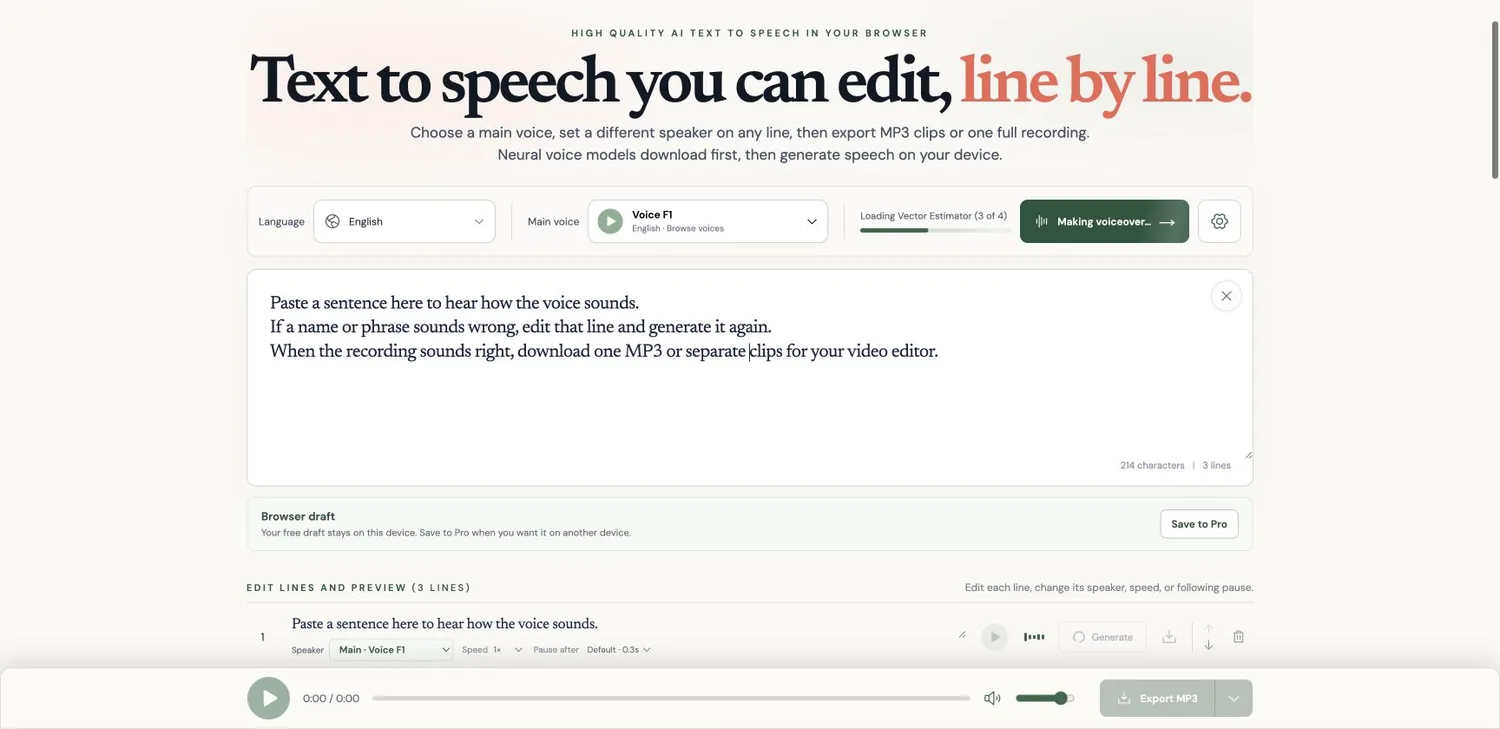
English script and the initial local voice-model loading indicator. - 2
Step 2 of 4
Generate the lines
When generation finishes, every line has its own play and MP3 download button.
The full recording and the export controls unlock once all lines have audio.
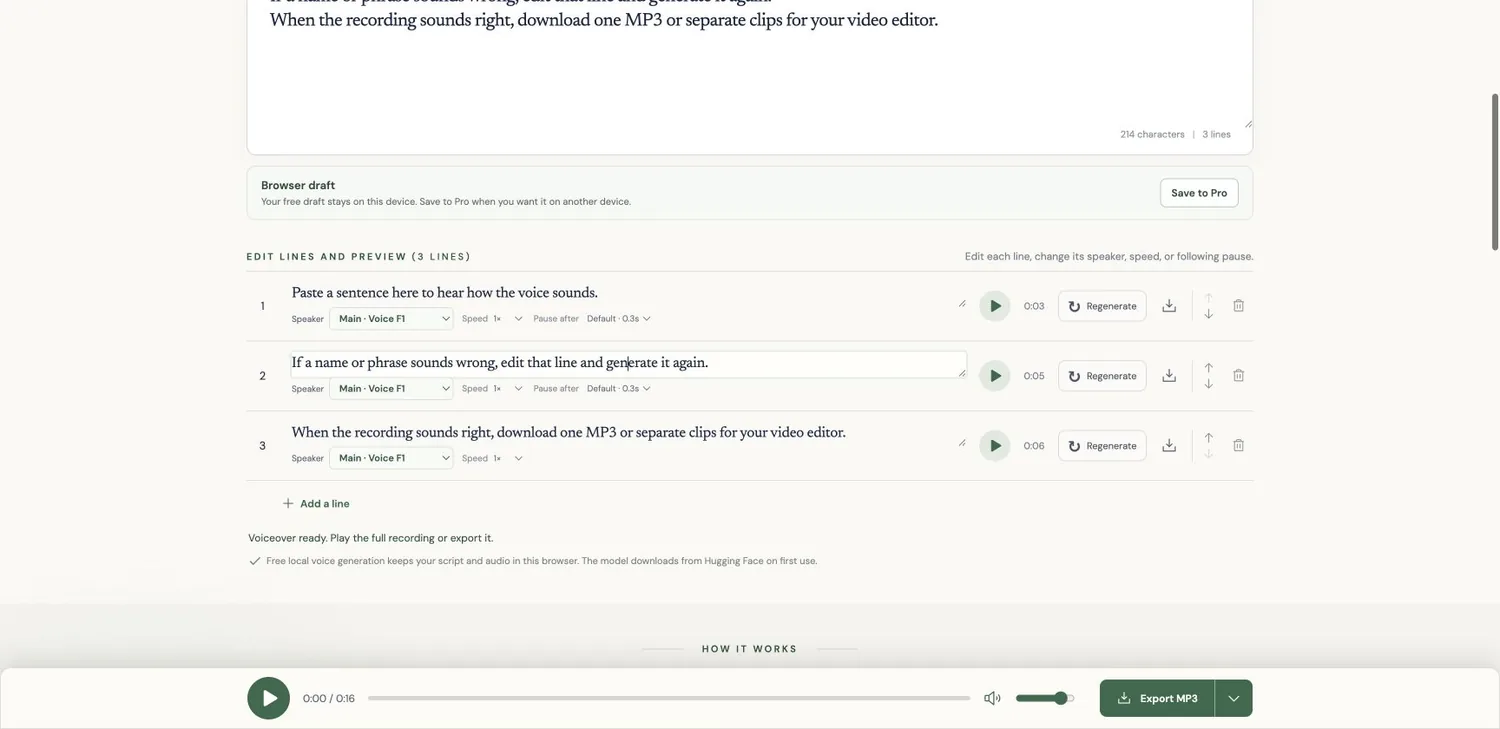
Three generated English lines with individual playback, regeneration, and download controls. - 3
Step 3 of 4
Change one line
Edit the text of a line and its old audio is cleared.
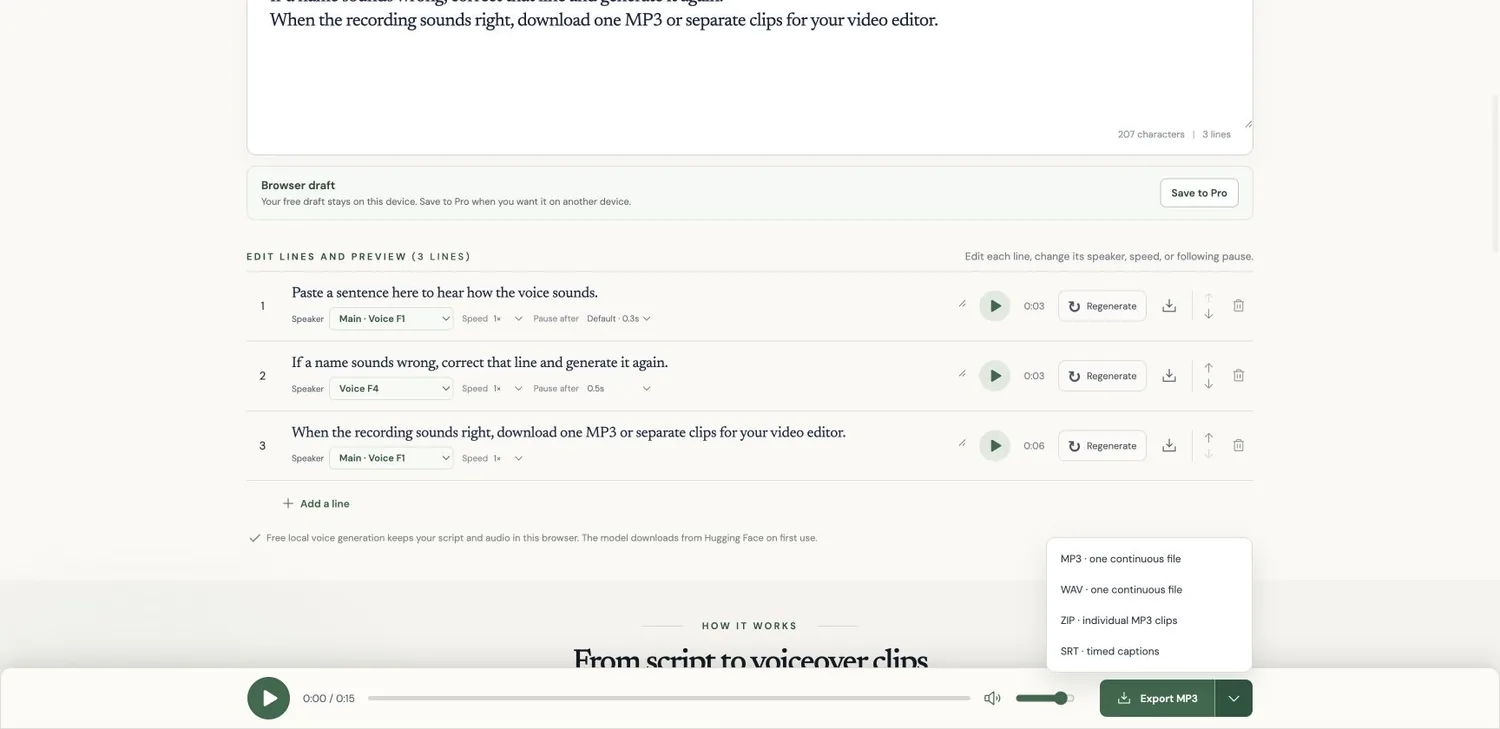
In the screenshot, the second sentence was rewritten, given another voice (Voice F4) and a 0.5-second pause after it. Press Generate and only that line is rebuilt. The others keep their audio. Listen again before you export: a shorter sentence or a different speaker changes the clip length, and if the audio already sits on a video timeline you will need to adjust that part of the edit.
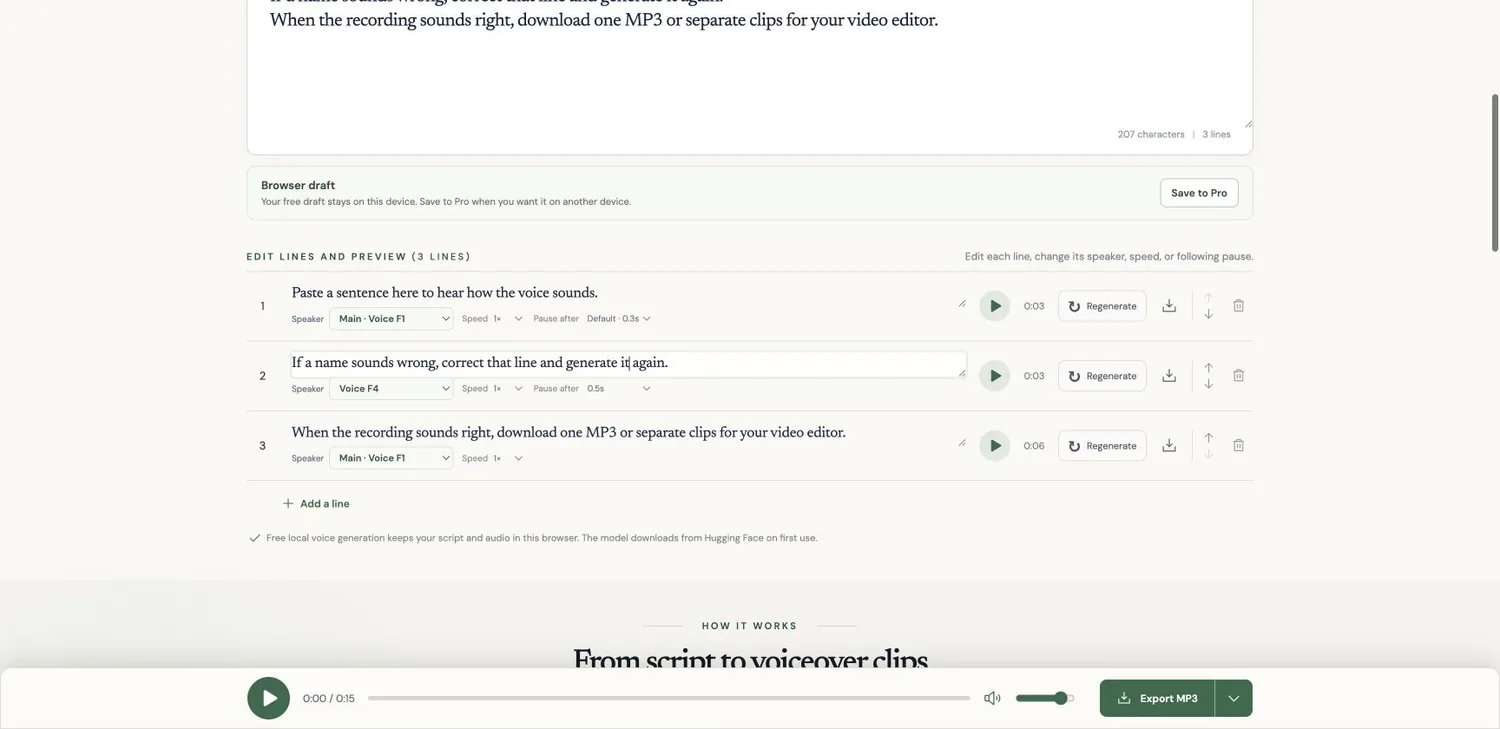
The revised second sentence using Voice F4 and a half-second following pause. - 4
Step 4 of 4
Export
Open the export menu.
It offers four options.
Export options
- MP3
- One continuous voiceover file
- WAV
- One continuous WAV recording
- ZIP
- Individual MP3 clips for the lines
- SRT
- Captions timed from the generated speech and pauses
Pick the ZIP if you want to place sentences one by one in a video editor. A joined MP3 or WAV is simpler for a plain handoff. SRT is a caption file, not a video with subtitles burned in.
One thing to watch: the ZIP file names contain each line's number and text. Reorder or rewrite lines and the names change, so keep track of your replacements yourself.
Languages, voices and limits
The language selector lists 32 languages: the 31 from Supertonic 3, plus Hebrew through its own model. English, Spanish, French, German, Italian, Portuguese, Japanese, Korean, Hindi and Arabic are among them. Supertonic offers ten preset voice styles and Hebrew has four. They are presets, so don't expect hundreds of distinct speakers.
Check pronunciation in your language, especially names, abbreviations and specialist terms. A language in the menu doesn't mean every sentence will sound right. Listen before you publish.
Limits to know about
Hardware and network
Local generation needs a compatible browser, enough device memory and a connection for the model download.
Your draft
The free draft stays in that browser. It doesn't follow you to another device, so keep your script and exported audio somewhere you control.
Voices
Preset voices only. No voice cloning, and no real-time integration for a game engine.
Captions
SRT follows your script and its timing. It doesn't transcribe an uploaded recording, and it doesn't know about cuts you make later in another editor.
With the free local workflow, your script and audio are processed in the browser instead of being sent to a speech API. Cloud voices and saved projects work differently, and the privacy page explains how.
What the Pro plan adds
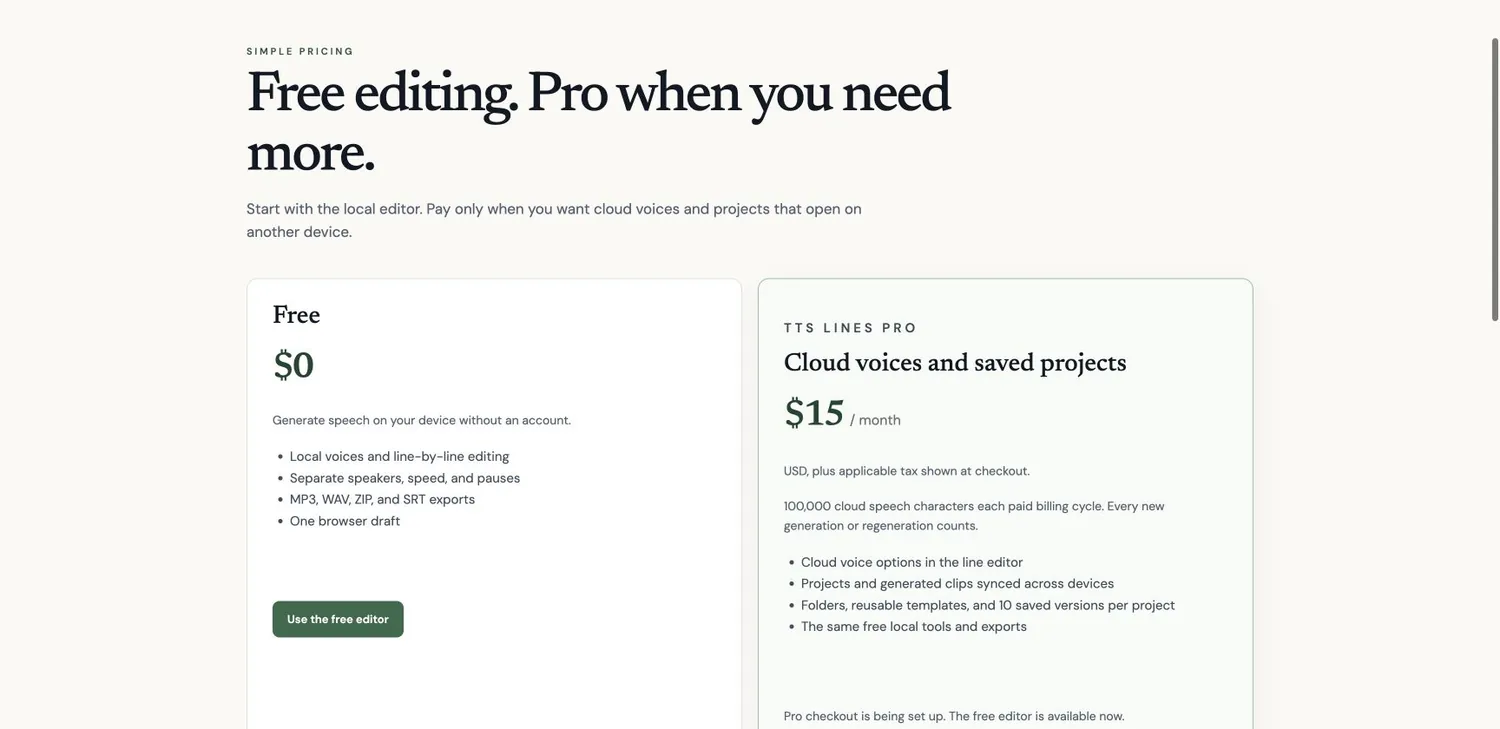
Pro is announced at $15 USD a month, plus tax. When I checked on October 12, checkout still wasn't open, so you can't buy it yet. The free editor is what is live today.
On the pricing page, Pro adds cloud voices, 100,000 cloud characters per billing cycle, projects synced across devices, folders, reusable templates and ten saved versions per project. Every new cloud generation or regeneration counts against the allowance. The local tools and exports stay in the free version.
Cloud voices send the line you generate to a speech provider, and saved projects live on a server. That is different from the local voices I tested, and I only used the free editor.
Try TTS Lines
Paste three sentences, regenerate one, and download the separate clips. That is enough to know if it fits your workflow.
Frequently asked questions
- Is TTS Lines free?
- Yes. The editor is free and needs no account. A Pro plan is announced at $15 USD a month, but when I checked on October 12 its checkout wasn't open yet, so the free editor is the only thing you can use today.
- Does TTS Lines run on my computer or on a server?
- On your computer. With the free voices, your browser downloads a voice model the first time you generate and then produces the audio locally. Server-side cloud voices belong to the Pro plan.
- Can I make a conversation with several speakers?
- Yes, and it is the best part. Every line has its own speaker, speed and pause, so you can build a whole dialogue and change one line without touching the others.
- What can I export from TTS Lines?
- One continuous MP3, one continuous WAV, a ZIP of individual MP3 clips, one per line, or an SRT caption file timed from the generated speech.
- Which languages does it support?
- The language selector lists 32: the 31 covered by the Supertonic 3 model, plus Hebrew through a separate local model. Check pronunciation in your language before you publish, especially names and abbreviations.
- Does TTS Lines block or censor what you write?
- In my testing I never got blocked, and I never hit a limit. That is what I saw, and I can't promise it accepts every input.
- Can I use the audio in a commercial project?
- Check the terms first. The Supertonic 3 model is distributed under OpenRAIL-M, which includes use restrictions, and model permissions are separate from the code licenses. TTS Lines lists the details on its technology page.
- Is my script sent to a server?
- Not with the free local voices: your script and the audio are processed in the browser. Cloud voices and saved projects in the Pro plan work differently, and the privacy page explains how.
- Can TTS Lines clone my voice?
- I didn't find voice cloning in it. The editor uses preset voices: ten styles on the main model and four for Hebrew.
Keep reading
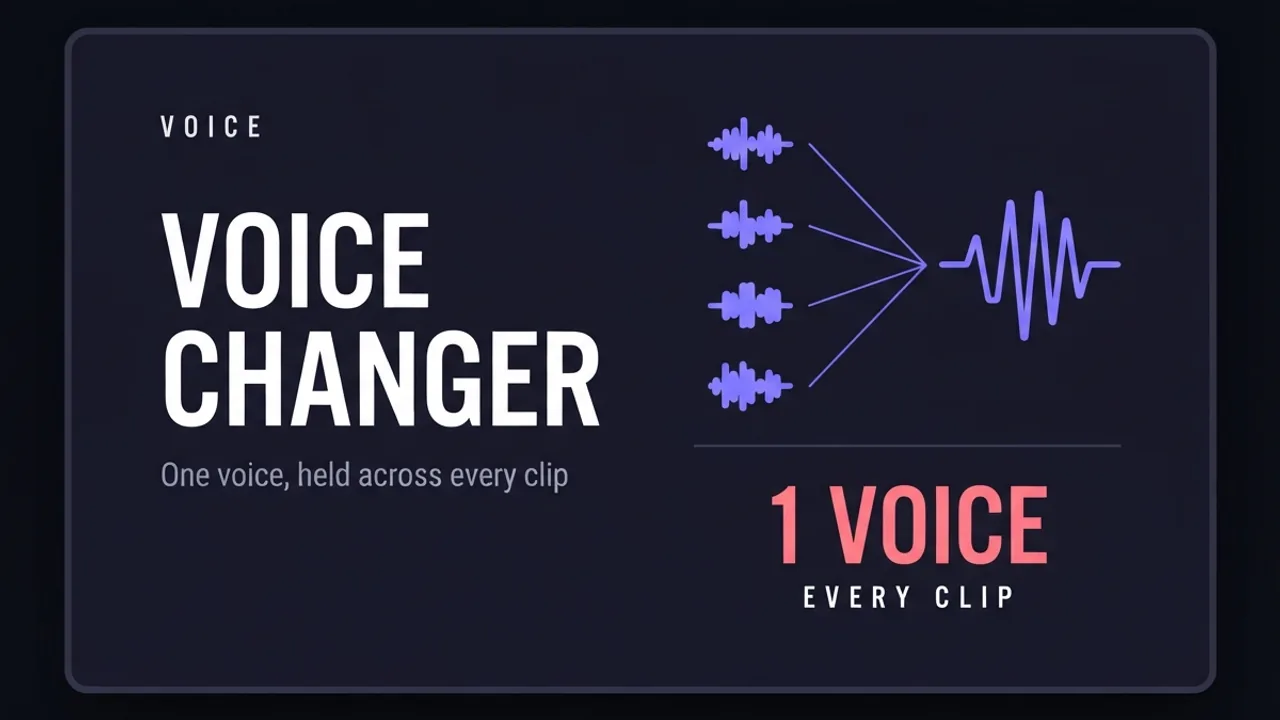
How to use ElevenLabs Voice Changer to keep one voice across a whole video
How to use ElevenLabs' Voice Changer (speech-to-speech) to replace your recorded voice with one consistent voice across a long video assembled from several separate AI generations.
How to Set Up AuK: A Local, Uncensored Voice Model
Install AuK, Tencent's open-source 1.5B speech model, on a rented RunPod GPU through its official Gradio web form: zero-shot voice cloning, text-to-speech, and speech editing with no account, no content filter, and no per-second usage fee once it's running.
How to write a script for an AI-generated video
A script format built for AI video generation, not film: every scene planned with its start frame, end frame, duration, dialogue, camera move, and sound, so each clip can be generated on its own and still cut together as one continuous video.
Get new guides by email
One email when we publish new guides and model breakdowns. No spam, unsubscribe anytime.