
AI video generation on a low-VRAM GPU
Written by Clement
Almost every local AI video guide, including most of ours, assumes a 16GB card or better. That leaves out a lot of people, because the most common gaming GPUs in use today have 8GB or less.
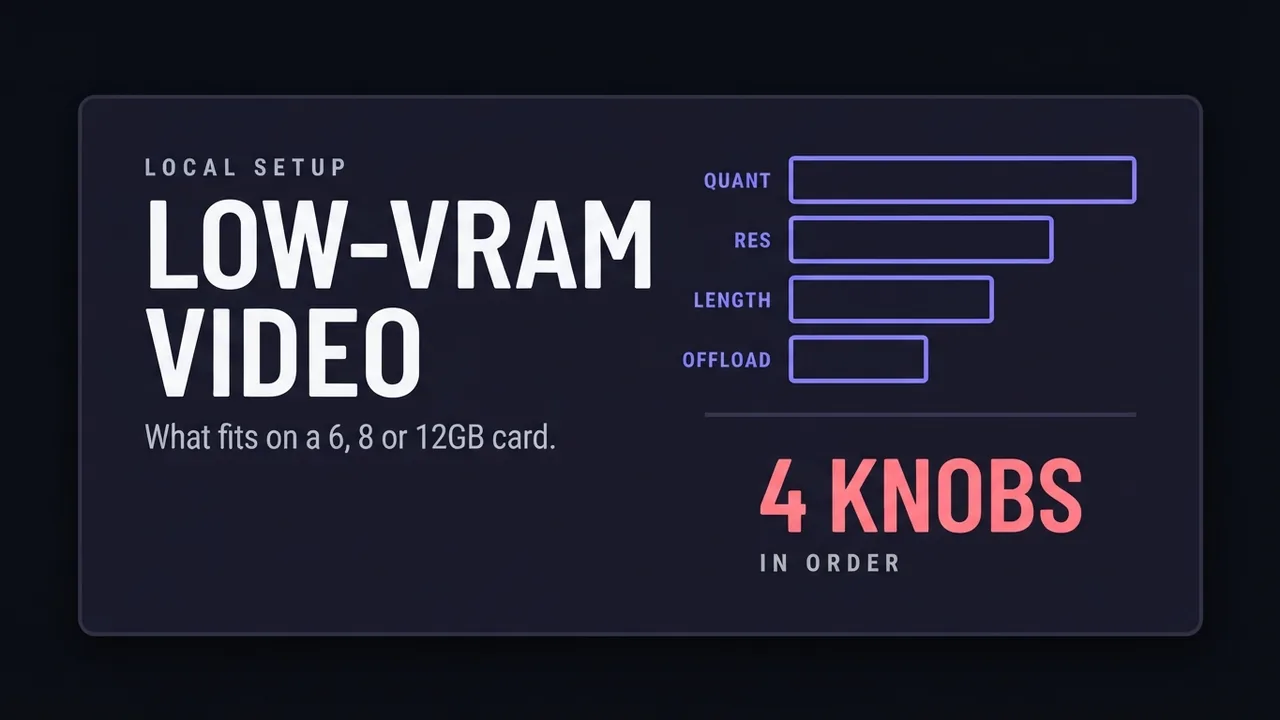
This page is about the four things that decide whether a model fits, and the order to try them in. It deliberately does not hand you a table of cards and models, for a reason covered at the bottom.
What is filling your VRAM
Three things compete for the same memory, and knowing which one is hurting you decides which fix to reach for. The model weights are the fixed cost: whatever the file takes, loaded. Attention and activations are the variable cost, and they grow with resolution and clip length, which is why the same model fits at one setting and fails at another. The text encoder is the part people forget, and on video models it is often large enough to matter.
That last one is worth checking first because it is the cheapest thing to fix. A quantized text encoder can free room without touching the diffusion model or your output settings at all. Our MiniMax H3 walkthrough is a concrete example: the guidance there is to match the encoder file to the card, dropping to a more aggressively quantized encoder as VRAM gets tighter, independently of which diffusion build you run.
An out-of-memory error tells you the total did not fit. It does not tell you which of the three pushed it over, and guessing can waste an afternoon.
The four knobs, in the order worth turning them
Roughly ordered by quality cost per gigabyte freed. Work down the list rather than jumping to the last one.
- Quantization
- The biggest lever by far. FP8 and INT8 builds cut the model's footprint substantially against full precision. Quality cost is real but usually small next to the memory saved, which is why it is first
- Resolution
- Attention cost scales with pixel count. Generating lower and upscaling afterwards is often better than a native higher resolution.
- Clip length
- Fewer frames per pass, then chain them. This is the same technique as our longer-videos guide, used for a different reason: there for length, here to fit
- Offloading and block swapping
- Move parts of the model between VRAM and system RAM during generation.
Where the floor really sits
Model developers do publish minimum-hardware claims, and they are worth reading as a starting point rather than a guarantee. MiniMax, for example, cites an RTX 3060-class card as workable for H3 with offloading turned on, which is a far lower floor than the model's full-precision size suggests.
Community low-VRAM tooling pushes the claimed floor lower still, through aggressive block swapping. We flagged this on the H3 guide and the caution applies generally: treat any dramatic sub-8GB figure as unverified, and expect a real speed trade-off in exchange. A model that technically loads but takes twenty minutes a clip is a different product from one that runs comfortably.
The other honest option is not to fight it. Our breakdown of what AI video generation actually costs covers the hosted side, and for occasional use, renting is frequently cheaper than the upgrade that would let you run it locally.
Frequently asked questions
- Can I generate AI video with 8GB of VRAM?
- Often yes, with quantized model builds, a lower resolution, short clips, and offloading enabled. The combination matters more than any single setting, and the practical trade is speed: an 8GB card leaning on offloading will generate the same clip considerably slower than a card that holds the model outright.
- What should I lower first when a model will not fit?
- Quantization, then resolution, then clip length, then offloading. That order is roughly by quality cost per gigabyte freed. Switching to an FP8 or INT8 build usually frees the most memory for the least visible loss, while offloading is last because it costs speed rather than quality and can make generation impractically slow.
- Does system RAM help if my GPU is the bottleneck?
- Yes, once offloading is involved. Offloading moves parts of the model between VRAM and system RAM during generation, so system memory becomes part of the working set. If you cannot upgrade the card, more system RAM is the cheaper way to make a tight setup viable, though it does not make generation fast.
- Is it worth upgrading my GPU for local AI video?
- It depends entirely on volume. Renting hosted generation is usually cheaper than a GPU upgrade unless you are generating regularly, and the hosted tiers give you models larger than consumer hardware can hold. The case for local is privacy, zero marginal cost per clip once you own the card, and working offline.
Keep reading
How to run MiniMax H3 locally in ComfyUI
Install MiniMax H3 in ComfyUI: the right FP8/INT8 files for your GPU, the license restriction to check first, and all three workflows, step by step.
How to generate videos with Wan 2.2 (free, step-by-step)
A tested, step-by-step walkthrough for turning a single image into smooth AI video with Wan 2.2: the exact settings that matter, the prompt structure that works, and the mistakes that waste renders. Free.
How much does AI video generation cost?
A clear breakdown of what AI video costs: per-second pricing, why resolution and audio change the bill, how to estimate a clip before you generate it, the free local alternative, and where the hidden costs like upscaling hide.
How to make longer AI videos: 4 methods that work
AI video models cap out at a few seconds. Here are the 4 methods that extend them: chaining clips, last-frame continuation, and keeping motion consistent across every join. Step by step, free.
How to fix flickering AI video: 4 causes and fixes
AI video that flickers, shimmers, or morphs between frames has 4 usual causes. Here's how to diagnose and fix each one: source-image noise, too-few steps, over-long clips, and unstable prompts. Step by step.
Get new guides by email
One email when we publish new guides and model breakdowns. No spam, unsubscribe anytime.