
How to Set Up YuE2: A Local, Open-Source AI Music Model
Written by Clement

YuE2 is a 3B open-source music model from M·A·P (Multimodal Art Projection), built around a two-stage idea most music generators skip: it first composes an editable musical score (melody, rhythm, chords, lyrics), then renders that score into a full song with vocals and accompaniment. Because the score is a real intermediate step you can see and edit, you can fix a bad chord progression or rewrite a verse without regenerating the whole track. This walks through running it on a rented cloud GPU via ComfyUI, the same RunPod path used for the local image-model setup.
What makes YuE2 different from a one-shot music generator
Most AI music tools go straight from a text prompt to finished audio: you get a song, and if a section is wrong, your only real fix is regenerating the whole thing with a different prompt and hoping. YuE2 splits the job in two. First it plans a score, an ABC-notation musical structure covering melody, rhythm, chords, and any lyrics, that you can view and hand-edit before anything is rendered to audio. Only then does it decode that score into 48kHz stereo audio with vocals and instrumentation.
That split is what the ComfyUI-FL-YuE2 node pack this setup installs exposes directly: a Piano Roll / Score Editor node you can open, read, and rewrite before the Render Music step ever runs. It's the closest thing to sheet-music-level control this category of model currently offers.
1 steps
Watch the video walkthrough
- 1
Step 1 of 21
Prefer video?
This guide has a companion video covering the same setup end to end, from picking a GPU through generating the first track.
Watch on YouTubeThe full walkthrough below, screenshot by screenshot. Watch on YouTube
2 steps
Create a RunPod account
- 2
Step 2 of 21
Sign up at RunPod
Go to runpod.io and create an account (this is a referral link).
Open runpod.io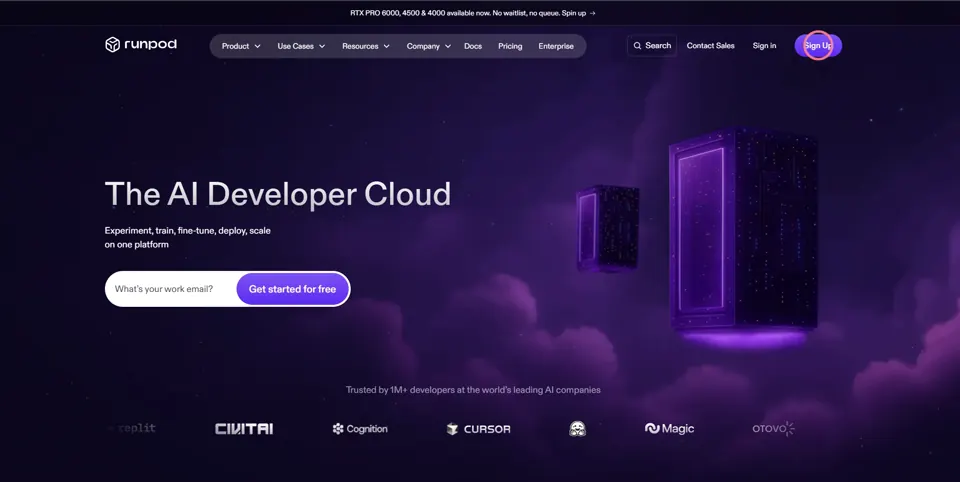
Click on the signup button on the top right to start Open runpod.io - 3
Step 3 of 21
Add funds to your account
$10 covers a solid testing session.
YuE2's checkpoints total under 8GB, so most of your pod time goes to actual song generation, not downloading.
The + button next to your balance, top right of the dashboard.
6 steps
Configure and deploy the pod
YuE2's upstream README states a 24GB VRAM minimum on a GPU with BF16 support; below that is untested. Pick a card that clears that bar rather than the cheapest one on offer.
- 4
Step 4 of 21
Pick a GPU with 24GB VRAM or more, with BF16 support
From the dashboard, click Pods in the left nav, then Deploy Pod.
Sort by VRAM and price, and pick a current-generation card at or above 24GB.
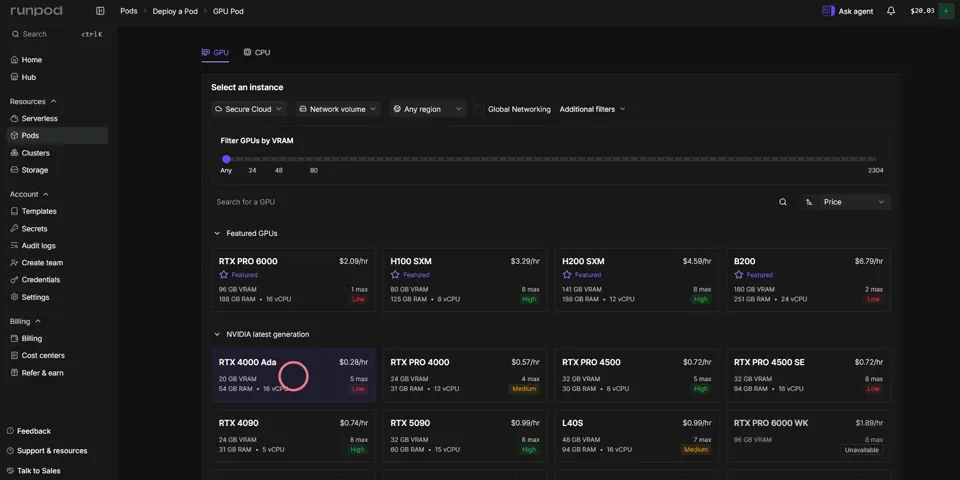
The GPU list, sorted by VRAM, RAM, vCPU, and hourly price. - 5
Step 5 of 21
Set the pod template to a PyTorch build
Runpod Pytorch 2.8.0 is the current default template; it ships CUDA and PyTorch pre-installed.
If a different template is selected, hit Change template and pick it from the list.
- 6
Step 6 of 21
Expose the ports ComfyUI needs
Under Expose HTTP ports, set 8888,4000,8188,8889.
8188 is ComfyUI's default port; the others cover Jupyter and any auxiliary service.
- 7
Step 7 of 21
Set container disk to at least 40GB
YuE2's checkpoints plus ComfyUI and its Python environment fit comfortably in 40GB.
- 8
Step 8 of 21
Attach a network volume instead of relying on container disk alone
A network volume survives stopping the pod; container disk doesn't.
YuE2's two checkpoints are a 7.8GB download that the setup script has to repeat every time you deploy onto fresh container disk. Attach a 20GB+ network volume, mount it at /workspace, and that download happens once instead of once per session.
- 9
Step 9 of 21
Deploy On-Demand
On-Demand bills per second of actual usage, no upfront commitment, right for testing before you know how much you'll use this.
Get new guides by email
One email when we publish new guides and model breakdowns. No spam, unsubscribe anytime.
4 steps
Run the setup script in Jupyter
- 10
Step 10 of 21
Open Jupyter Lab
On the pod's Connect tab, port 8888 shows "Jupyter Lab, Ready." Click it.
- 11
Step 11 of 21
Download the setup script
Grab setup_yue2_comfyui.py below and save it locally.
Download the setup script (.py) - 12
Step 12 of 21
Upload the setup script
In Jupyter, upload the file you just downloaded into /workspace.
- 13
Step 13 of 21
Open a terminal and run the script
python setup_yue2_comfyui.py.
It clones ComfyUI, installs the ComfyUI-FL-YuE2 custom node, and downloads the YuE2-3B generation model and YuE2-Vae decoder.
5 steps
Open ComfyUI and load the workflow
- 14
Step 14 of 21
Go back to the pod's Connect tab in RunPod
Same screen you used to open Jupyter.
- 15
Step 15 of 21
Open port 8188
That's ComfyUI's default port, already exposed from the pod-template step above.
Click it once the setup script finishes.
- 16
Step 16 of 21
Close the pop-ups
ComfyUI opens with a couple of dialogs on top.
Close them to get to the empty canvas.
- 17
Step 17 of 21
Download the workflow file
Grab the .json workflow below.
Load Models feeds two Compose nodes: a ready-to-sing pop jingle with style and lyrics already written, and ComfyUI-FL-YuE2's own official instrumental score-editor example. A checkbox on the "Which song?" switch node between them picks which one renders.
Download the workflow file (.json) - 18
Step 18 of 21
Drag and drop the file onto the canvas
The full node graph appears: Load Models feeding both Compose nodes, both feeding one "Which song?" switch node, into a single shared Render Music -> Decode Audio -> Preview -> Save Audio chain.
3 steps
Install missing nodes and generate your first track
- 19
Step 19 of 21
If ComfyUI still shows the nodes as missing, restart once more
The setup script already clones ComfyUI-FL-YuE2 directly, so the nodes should just work.
ComfyUI-FL-YuE2 isn't in Manager's own node registry yet, so Manager's "Install Missing Custom Nodes" won't find it if you go looking there; that message is safe to ignore. If the FL_YuE2_* nodes are still red after a restart and browser reload, the node pack's import likely failed on a missing Python dependency, not a missing clone; check the ComfyUI console log for the actual error.
- 20
Step 20 of 21
Set download_missing to true on the Load Models node
This lets the node pack fetch any remaining model file it needs directly into ComfyUI/models/yue2/ the first time you queue.
- 21
Step 21 of 21
Check the switch: on renders the GenLovers anthem, off renders the instrumental example
The "Which song?" node's switch checkbox is on by default.
Checked routes the "Compose (GenLovers anthem)" node, already filled in with a full pop-jingle style prompt and verse/chorus lyrics, into Render Music. Unchecked routes the official instrumental example instead. Only the checked side renders; the other is skipped rather than wasting GPU time on both. Edit either Compose node's style and lyrics to write your own song, then click Execute, top right.
Writing your own song: the GenLovers anthem, worked example
The workflow's default "Compose (GenLovers anthem)" branch is a real worked example, not a placeholder: an upbeat pop jingle with a full verse/chorus/verse/chorus/outro lyric sheet about this site, built to show what a from-scratch composition with vocals looks like end to end. The two fields that matter are style (genre, tempo, instrumentation, vocal character) and lyrics (plain text, [Verse]/[Chorus]/[Outro] tags to mark sections). Leave the Score Editor's ABC field on that branch empty; an empty score lets Compose write its own melody from style and lyrics instead of following a fixed one.
Style prompt used: "Upbeat pop anthem, female vocal, 120 BPM, bright synths, punchy pop drums, catchy singalong chorus, radio-ready, energetic and optimistic, advertisement jingle energy."
Lyrics used: [Verse 1] So many tools, so many names AI art scattered, feels like a maze GenLovers found it, laid it all clear The guides, the reviews, we bring it all here [Chorus] GenLovers, GenLovers Find your tool, know before you try GenLovers, GenLovers Real reviews under an open sky [Verse 2] From your first prompt to the perfect shot Step by step, we show you what we've got No guessing games, no wasted time Just the path from idea to the finish line [Chorus] GenLovers, GenLovers Find your tool, know before you try GenLovers, GenLovers Real reviews under an open sky [Outro] GenLovers, GenLovers Come find your tool tonight
The fastest way to test a different sound without touching lyrics or the JSON file at all: keep the lyrics field exactly as it is and only swap the style prompt, then re-Execute. The vocal melody, tempo, and instrumentation change; the words stay the same. A few style prompts that work as drop-in swaps for the anthem above:
Style prompt swaps (same lyrics, different genre)
Paste any of these into the style field in place of the pop-anthem prompt above and re-Execute. Same GenLovers lyrics every time.
- Rock anthem
- Upbeat rock anthem, female vocal, 130 BPM, driving electric guitars, powerful drums, big singalong chorus, stadium energy, confident and empowering
- Hip-hop / trap
- Modern trap-pop, female vocal, 95 BPM, punchy 808 bass, hi-hat rolls, catchy melodic hook, confident delivery, radio-ready
- EDM / dance
- Uplifting EDM pop, female vocal, 128 BPM, four-on-the-floor kick, bright synth leads, big drop energy, festival anthem, euphoric
- Acoustic / folk
- Warm acoustic pop, female vocal, 100 BPM, fingerpicked acoustic guitar, light percussion, intimate and sincere, singalong chorus
- Cinematic / orchestral pop
- Cinematic pop anthem, female vocal, 110 BPM, soaring strings, epic drums, inspirational build, triumphant chorus
Hardware and software checklist
This mirrors YuE2's own upstream requirements; the ComfyUI node pack adds no further hardware constraint of its own.
- GPU
- 24GB VRAM minimum, with BF16 support, per the upstream README (below that is untested)
- Container disk
- 40GB or more
- Network volume
- 20GB+ recommended, mounted at /workspace, so the 7.8GB checkpoint download survives stopping the pod
- ComfyUI version
- Current main branch; ComfyUI-FL-YuE2 depends on a split-half RMS/RoPE operation that only recent ComfyUI builds ship
- License
- Source/nodes: Apache 2.0. Model weights (YuE2-3B, YuE2-Vae): CC BY-NC 4.0, non-commercial only
Troubleshooting
Out-of-memory error
Lower max_score_tokens or max_duration on the Compose/Render nodes, reduce tile_frames on Decode Audio, or move to a GPU above the 24GB minimum
Generated song ignores the lyrics
Check the lyrics field is wired into Compose, and that the style prompt doesn't contradict having vocals (e.g. "no singing" phrasing left over from an instrumental test)
Score Editor shows an empty or malformed ABC block
Re-run Compose; a from-scratch composition occasionally needs a reroll, same as any generative step
FL_YuE2_* nodes show red/missing even though the setup script ran
Check ComfyUI's own console log (or /workspace/ComfyUI/user/comfyui_8188.log) for an import error under ComfyUI-FL-YuE2, not Manager's registry search; Manager doesn't list this pack yet, so its "not found in registry" message is expected and unrelated to whether the clone worked. A missing Python dependency (e.g. soundfile, pulled in by the pack's training module) is the most common real cause; the setup script installs it, but re-run pip install soundfile by hand and restart ComfyUI if you're on an older download of the script
Custom node fails to import at ComfyUI startup for a different reason
ComfyUI-FL-YuE2 needs a current ComfyUI build (it relies on Comfy Kitchen's split-half RMS/RoPE operation). Re-run the setup script to pull the latest ComfyUI main, or delete /workspace/ComfyUI and let it re-clone
Frequently asked questions
- What is YuE2, and who made it?
- YuE2 is a 3B open-source music model from M·A·P (Multimodal Art Projection), with academic and industry collaborators including HKUST, NYU, Stanford, and MBZUAI. It composes an editable musical score before rendering a full song with vocals and accompaniment from it.
- Do I need a GPU to run YuE2 locally?
- Yes. YuE2's own README states a 24GB VRAM minimum on a GPU with BF16 support; running through ComfyUI on RunPod doesn't lower that requirement.
- Can I use YuE2's output commercially?
- No, not under the setup in this guide. YuE2's source and ComfyUI nodes are Apache 2.0, but the model weights (YuE2-3B, YuE2-Vae) are CC BY-NC 4.0, non-commercial use only. Check the license yourself before using generated output commercially.
- What does "editable score" actually mean in practice?
- Before YuE2 renders any audio, it produces a musical score in ABC notation, melody, rhythm, chords, and lyrics, that the ComfyUI-FL-YuE2 node pack lets you open, read, and hand-edit. You can fix a chord or rewrite a lyric line before the audio render step, instead of only being able to reroll the whole generation.
- Is running YuE2 on RunPod free?
- No, RunPod bills per second for GPU time, and YuE2's 24GB VRAM requirement means a somewhat higher hourly rate than a smaller model. YuE2's checkpoints are small (under 8GB total), so download time isn't the cost driver, the GPU rental during generation is.
- How is this different from using Suno?
- Suno is a hosted service with its own pricing and content policy; see the Suno cost guide for what that runs. YuE2 runs entirely on hardware you control, with an editable score you can hand-tune before rendering, at the cost of the RunPod setup here, the GPU rental while it runs, and a non-commercial license on the weights.
- How do I write my own song instead of the default example?
- Open the "Compose (GenLovers anthem)" node (or the instrumental one, via the "Which song?" switch) and replace its style and lyrics fields. Style covers genre, tempo, instrumentation, and vocal character; lyrics is plain text with optional [Verse]/[Chorus]/[Outro] tags to mark sections. Leave the connected Score Editor's ABC field empty so Compose writes its own melody from what you typed, then click Execute.
- Can I hear the same lyrics in a different genre without redoing everything?
- Yes. Change only the style prompt and leave lyrics untouched, then re-Execute; the melody, tempo, and instrumentation change while the words stay the same. No need to touch the Score Editor or the workflow file itself for this.
Keep reading

How to Set Up AuK: A Local, Uncensored Voice Model
Install AuK, Tencent's open-source 1.5B speech model, on a rented RunPod GPU through its official Gradio web form: zero-shot voice cloning, text-to-speech, and speech editing with no account, no content filter, and no per-second usage fee once it's running.
How much does Suno AI cost?
What Suno AI costs: how its credit system works, the real difference between the free, Pro, and Premier tiers, the commercial-use catch on the free plan, what a single song costs, and how to pick the right tier.

How to Set Up a Local NSFW Image Model: Full Tutorial
Install an adult image-generation workflow on a rented cloud GPU: RunPod, ComfyUI, a real workflow file, and every step in between, screenshot by screenshot.

How to Make AI Porn: The Full Pipeline, Idea to Finished Video
The real production method behind a finished AI adult video: script first, repeatable character and scene sheets, then generation, then stitching it all into one clip with one consistent voice.
Get new guides by email
One email when we publish new guides and model breakdowns. No spam, unsubscribe anytime.