
How to Set Up Qwen-Image-2.1 in ComfyUI
Written by Clement
Qwen-Image-2.1 is Alibaba's open-weight image model, covering text-to-image generation, multi-reference image editing (up to 16 input images in one call), native transparent-background (RGBA) output, and a dedicated background-removal mode. This walks through running it via ComfyUI on a rented cloud GPU, the same RunPod path used for the other local model setups on this site, using the three official workflow templates Comfy-Org ships for it.
Create a RunPod account
- 1

- 2
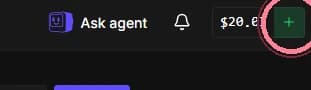
Add funds to your account
$10 covers a solid testing session with the default int8 setup. The int8 diffusion model and text encoder together are about 13.6GB, so most of your pod time goes to generation, not downloading.
Configure and deploy the pod
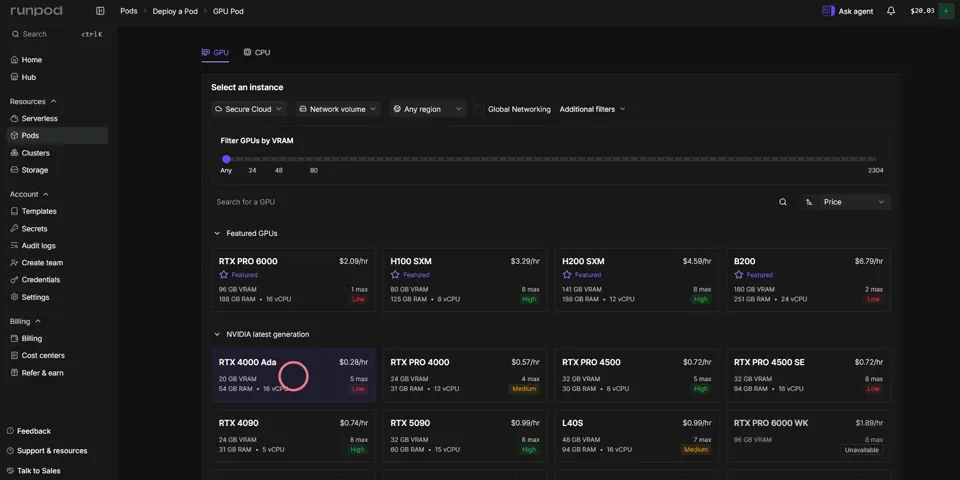
Pick your GPU based on the weight tier from the callout above: 12GB+ for the int8 default, 24GB+ for --full, 8-10GB+ for --gguf.
- 3
Pick a GPU that clears your chosen tier's VRAM floor
From the dashboard, click Pods in the left nav, then Deploy Pod. Sort by VRAM and price.
- 4
Set the pod template to a PyTorch build
Runpod Pytorch is the current default template; it ships CUDA and PyTorch pre-installed. If a different template is selected, hit Change template and pick it from the list.
- 5
Expose the ports ComfyUI needs
Under Expose HTTP ports, set 8888,4000,8188,8889. 8188 is ComfyUI's default port, 8888 is Jupyter, and 8889 is where the optional Gradio UI further down this guide runs if you use it.
- 6
Set container disk to at least 40GB (60GB if using --full)
The int8 and GGUF tiers fit comfortably in 40GB alongside ComfyUI and its Python environment; the bf16 tier needs more headroom.
- 7
Attach a network volume instead of relying on container disk alone
A network volume survives stopping the pod; container disk doesn't. The model download (13.6GB+ depending on tier) is one you don't want to repeat every time you redeploy onto fresh container disk. Attach a 40GB+ network volume, mount it at /workspace, and the download happens once.
- 8
Deploy On-Demand
On-Demand bills per second of actual usage, no upfront commitment, right for testing before you know how much you'll use this.
Run the setup script in Jupyter
- 9
Open Jupyter Lab
On the pod's Connect tab, port 8888 shows "Jupyter Lab, Ready." Click it.
- 10
Download the setup script
Grab setup_qwen_image_2_1_comfyui.py below and save it locally.
Download the setup script (.py) - 11
Upload the setup script
In Jupyter, upload the file you just downloaded into /workspace.
- 12
Open a terminal and run the script
python setup_qwen_image_2_1_comfyui.py for the int8 default. Add --full for bf16, or --gguf for the Q4_K_M quantized model. It clones ComfyUI and downloads the diffusion model, text encoder, and VAE for your chosen tier.
Get new guides by email
One email when we publish new guides and model breakdowns. No spam, unsubscribe anytime.
Open ComfyUI and load a workflow
- 13
Go back to the pod's Connect tab in RunPod
Same screen you used to open Jupyter.
- 14
Open port 8188
That's ComfyUI's default port, already exposed from the pod-template step above. Click it once the setup script finishes.
- 15
Close the pop-ups
ComfyUI opens with a couple of dialogs on top. Close them to get to the empty canvas.
- 16
Open the Templates sidebar and search "qwen image 2.1"
Three official Comfy-Org templates appear: Qwen Image 2.1: Text to Image, Qwen Image 2.1: Image Edit, and Remove Background: Qwen Image 2.1. Pick the one matching what you want to do.
- 17
Point each model loader at your downloaded files
If a node shows a red missing-model error, press R to refresh the models list, then select your diffusion model, text encoder, and qwen_image_2.1_vae_bf16.safetensors in their respective loader nodes.
Text-to-image: the parameters that matter
The Text to Image template exposes a resolution selector (aspect ratio plus a megapixel target, default 1.0), positive and negative prompt boxes, and the usual sampler settings. CFG defaults to 1.0; ComfyUI's own node tooltip on TextEncodeQwenImage21 notes that reference images are resized to fit the resolution target while preserving aspect ratio, at multiples of 32 pixels, so an odd input size gets rounded rather than rejected.
For image editing, the same text encoder node accepts an Autogrow list of reference images, image_1 through image_16, capped at 16 slots in ComfyUI's own source rather than the 10 sometimes quoted elsewhere. The official Image Edit template ships with 2 image inputs wired by default; add more by connecting additional Load Image nodes into the empty image_N slots on the text encoder node.
Weight tiers and hardware
Pick one tier before running the setup script; VRAM figures are the practical floor for that tier, not a hard vendor-published minimum.
| int8 (default) | ~7.3GB diffusion model (qwen_image_2.1_int8_convrot.safetensors) + ~6.3GB text encoder (qwen3vl_8b_w4a8.safetensors). 12GB+ VRAM. |
|---|---|
| bf16 (--full) | ~14.2GB diffusion model (qwen_image_2.1_bf16.safetensors) + ~17.5GB text encoder (qwen3vl_8b_bf16.safetensors). 24GB+ VRAM, closest to reference quality. |
| GGUF (--gguf) | ~4.2GB Q4_K_M quantized diffusion model, via city96's ComfyUI-GGUF custom node (installed automatically). Paired with the int8 text encoder. 8-10GB VRAM. |
| VAE | qwen_image_2.1_vae_bf16.safetensors, ~676MB, shared across all three tiers. |
| Container disk | 40GB minimum; 60GB if using --full. |
Background removal and transparency
The Remove Background: Qwen Image 2.1 template uses the same model with a prompt built for extraction (e.g. "remove the background, keep only the subject, output a PNG") and saves a PNG with an alpha channel intact - this is the RGBA support the base model is tagged with on Hugging Face, not a separate matting model bolted on afterward.
Adding a LoRA
- 18
Place LoRA files in the loras folder
The setup script creates ComfyUI/models/loras/ during install. Drop any Qwen-Image-2.1-compatible .safetensors LoRA there.
- 19
Add a Load LoRA node between the model loader and the sampler
Expand the workflow's internal sub-graph (the node-group expansion button, top-right of the compact group), double-click the canvas, search Load LoRA, and wire its MODEL and CLIP outputs into the path the diffusion model and text encoder originally fed directly.
- 20
Set the LoRA strength
Start around 0.8-1.0 and adjust from there; too high a strength on an image LoRA tends to distort anatomy and composition before it improves style fidelity.
Skip the node graph: a simple Gradio UI
If you don't want to touch ComfyUI's node graph at all, the setup script can start a small Gradio app alongside ComfyUI automatically. It talks to ComfyUI's API in the background and gives you three plain tabs: a prompt box for text-to-image, an image-upload box plus prompt for editing, and a one-click background remover. On the Image Edit tab, the file picker takes multiple images in one selection, and selecting again adds more rather than replacing what's already there - use Clear all reference images to start over.
- 21
Download the Gradio app before you run --serve
Grab qwen_image_2_1_gradio.py below and upload it into /workspace, right next to setup_qwen_image_2_1_comfyui.py. The setup script looks for it in its own folder and launches it for you if it's there.
Download the Gradio app (.py) - 22
Run the setup script's --install step as normal
python setup_qwen_image_2_1_comfyui.py --install. If the Gradio file is present, this also installs gradio, requests, and pillow alongside ComfyUI's own dependencies.
- 23
Run --serve as normal
python setup_qwen_image_2_1_comfyui.py --serve. It starts ComfyUI, waits for it to answer, then starts the Gradio UI on top of it automatically on port 8889, already in the Expose HTTP ports list from the pod-template step above, so there's nothing extra to expose. Open port 8889 from the pod's Connect tab for the plain UI, or 8188 for the ComfyUI node graph - both are running at once.
What we tested
Real numbers from our own run, not vendor-quoted figures: RunPod RTX PRO 4000 Blackwell (24GB usable VRAM), EU-RO-1, secure cloud, $0.57/hr, int8 default, Text to Image template at the framework's 1024x1280 portrait resolution.
| Install time | About 4 minutes for the ~13.6GB int8 diffusion model + text encoder + VAE combined, over aria2c's multi-connection downloads |
|---|---|
| First generation | About 50 seconds total: a one-time ~49s CUDA warm-up on the first sampling step, then roughly 1.8s per step for the remaining 24 of 25 steps |
| Repeat generations | About 45 seconds each (25 steps at ~1.8s/step, no repeated warm-up once the model is loaded) |
| Quality, text/logo rendering | Strong: a branded t-shirt logo with a two-color gradient came out fully legible with the correct colors on the first attempt |
| Quality, fine skin-level detail | Mixed: a small forehead tattoo rendered as a plain outline rather than the requested detailed logo+text combination; a chest tattoo's text was present but slightly rough at full zoom |
| NSFW capability | Not filtered. Generated erotic and explicit test content without refusal or a content-policy block, since this runs entirely on your own rented hardware rather than through a hosted API |
Troubleshooting
| Out-of-memory error | Drop to a smaller tier (bf16 to int8 to GGUF), lower the resolution target, or move to a GPU with more VRAM |
|---|---|
| Node shows red / missing model | Press R in ComfyUI to refresh the models list after the setup script finishes; confirm the file landed in the exact folder the loader node expects (diffusion_models/, text_encoders/, or vae/) |
| GGUF node not found | Confirm the setup script ran with --gguf (it clones city96/ComfyUI-GGUF only in that mode); if you switched tiers after an earlier --install, re-run with --gguf to pull the custom node |
| Reference image in an edit workflow gets ignored | Confirm its Load Image node's IMAGE output is actually wired into an image_N slot on the TextEncodeQwenImage21 node, not left disconnected from an earlier edit |
| Gradio Image Edit ignores your uploaded photos and generates unrelated people | Re-download qwen_image_2_1_gradio.py - an earlier version submitted the reference images in a shape ComfyUI's server silently ignores, so the result came from the prompt alone with no images attached. Fixed as of this guide's current version; re-upload the file to /workspace and restart the app if you downloaded it before this fix |
| Gradio Image Edit with 2+ images only shows ONE of the people, output ignores the other reference entirely | Re-download qwen_image_2_1_gradio.py - an earlier version uploaded every reference image under the same fixed filename with overwrite enabled, so the second upload silently replaced the first one on disk before generation ran, and both LoadImage nodes ended up pointing at one single file. Fixed as of this guide's current version (each upload now gets a unique name); re-upload the file to /workspace and restart the app if you downloaded it before this fix |
| Output has no transparency where expected | Confirm you're on the Remove Background template (or a workflow that explicitly asks for a transparent/PNG output in the prompt) - the plain Text to Image template does not produce alpha by default |
| Gradio UI didn't start with --serve | Confirm qwen_image_2_1_gradio.py is in the same folder as the setup script (check the terminal for a SKIP Gradio UI line) and that you didn't pass --no-gradio; its own log is at /workspace/gradio_stdout.log |
| Gradio app can't reach ComfyUI | Check /workspace/comfyui_stdout.log for a crash; the setup script waits up to 180s for ComfyUI to answer before starting Gradio, so a slow model load can outrun that window on a first run |
Frequently asked questions
- What is Qwen-Image-2.1?
- Qwen-Image-2.1 is an open-weight image model from Alibaba's Qwen team, covering text-to-image generation, multi-reference image editing (up to 16 input images per call), native transparent-background PNG output, and a dedicated background-removal workflow.
- Can I use Qwen-Image-2.1 commercially?
- Not under the standard license. The model's weights ship under the Qwen RESEARCH LICENSE AGREEMENT, non-commercial use only, with no separate carve-out for generated outputs. This differs from the earlier Qwen-Image and Qwen-Image-Edit models, which are Apache 2.0. Commercial use requires a separate license directly from Qwen.
- How many reference images can I use for editing?
- Up to 16, per the image_1 through image_16 slots on ComfyUI's own TextEncodeQwenImage21 node. The official Image Edit template ships with 2 wired by default; add more by connecting additional Load Image nodes.
- Do I need a GPU to run Qwen-Image-2.1 locally?
- Yes. The lightest supported path here is the GGUF Q4_K_M tier at roughly 8-10GB VRAM; the int8 default needs 12GB+, and the bf16 originals need 24GB+.
- What's the difference between the int8, bf16, and GGUF versions?
- They're the same model at different precision/quantization levels. bf16 is the full-precision original (largest, closest to reference quality). int8 is Comfy-Org's own quantized repackage (roughly half the size). GGUF (via city96's ComfyUI-GGUF node) goes further for the lowest-VRAM GPUs, at some quality cost.
- Does the background-removal workflow use a different model?
- No. It's the same Qwen-Image-2.1 weights with a prompt built for extraction, saving a PNG with an alpha channel - which lines up with the base model's own "rgba" tag on Hugging Face rather than a separate matting model.
- Can I use Qwen-Image-2.1 without touching ComfyUI's node graph?
- Yes. Upload the Gradio app linked in this guide next to the setup script before running --serve, and it starts automatically alongside ComfyUI: a plain prompt box, an image-upload box for editing, and a one-click background remover, with no nodes visible. It calls ComfyUI's own API in the background, so ComfyUI still has to be running.
Keep reading
How to use Z-Image for AI image generation
A practical guide to Z-Image (z-image-turbo): a fast, lightweight text-to-image model with clean English and Chinese text rendering. Covers the resolutions that work best, how to write a prompt it renders faithfully, and the settings that decide speed versus quality.
How to use FLUX.2 [klein] for AI anime-style images
A practical guide to FLUX.2 [klein]: a small, fast model that restyles a photo or photoreal image into anime/manga art. Covers how the image-to-image transform works, how to write a style prompt it responds to, and the mistakes that break the pose or composition.

How to Set Up a Local NSFW Image Model: Full Tutorial
Install an adult image-generation workflow on a rented cloud GPU: RunPod, ComfyUI, a real workflow file, and every step in between, screenshot by screenshot.
What is a LoRA and when do you need one
A plain-language explanation of LoRAs for AI image generation: what they add to a base model, why they only work on open-weight models, and what weight to load one at.
Get new guides by email
One email when we publish new guides and model breakdowns. No spam, unsubscribe anytime.